


To migrate an AI-built site to WordPress and preserve SEO, inventory the existing pages, keep working URLs wherever possible, rebuild the content and features, and test the new site before switching traffic. Redirect changed addresses to relevant replacements and monitor search performance afterward. Careful migration reduces risk; it cannot guarantee unchanged rankings.
I would treat this as a business continuity project. A site can look identical after migration while its contact form fails, its important pages lose internal links or its checkout stops recording orders. The goal is a working website with its useful content and search signals intact.
This guide is for owners moving from an AI website builder or generated frontend to WordPress. It covers the decision points that a generic “export and import” checklist can miss.
First identify what your AI builder actually created
“AI-built website” describes how a site was made, not its file format. Your site might be static HTML, a JavaScript application, a hosted builder project or an existing WordPress installation. Each needs a different migration method.
| Current site | Likely WordPress route | Check first |
|---|---|---|
| Already WordPress | WordPress migration or content import | Whether you need the whole installation or only posts |
| Builder with a supported content export | Import supported content, then rebuild presentation | Which fields and media the export includes |
| Static HTML or generated frontend | Rebuild templates and transfer content | Forms, routing and scripts that need replacement |
| Hosted builder without a suitable export | Authorised manual transfer or a reviewed conversion service | Content ownership, asset access and old-URL redirects |
A downloadable ZIP does not automatically contain an installable WordPress theme. It might contain a frontend project whose forms depend on a separate service. Ask the builder what can be exported before cancelling anything.
WordPress’s importing handbook describes platform-specific import routes. WordPress.com also distinguishes full migration from content-only imports. Neither is a promise that arbitrary generated code converts into editable WordPress blocks.
Step 1 — Define what must keep working
Write an acceptance list before choosing a new theme. Include the pages that generate enquiries, the articles that receive search visits and the functions customers use. Assign one person to approve the finished result.
- Content: articles, product descriptions, author details, categories and important downloads.
- Search: URLs, titles, descriptions, canonical tags and internal links.
- Business functions: forms, booking, payments, account access and confirmation emails.
- Operations: analytics, consent controls, backups and administrator access.
My recommendation is to separate essential launch requirements from later improvements. Rewriting every article, changing the domain and redesigning every template during one move makes failures harder to diagnose.
Step 2 — Build a URL inventory and baseline
Collect addresses from the current sitemap, a crawl, Search Console landing pages, analytics and your navigation. Include important PDFs and images. A crawler starting at the homepage can miss orphan pages, so reconcile the sources.
Record each old URL, its intended destination, current response status, title, main heading, canonical URL and business purpose. Add whether it receives organic visits or valuable links. You can use a spreadsheet; the useful part is the mapping, not the software.
Save a dated baseline of search clicks, impressions, top pages and conversions. If you need help reading the reports, use my Google Search Console guide. These measurements help separate a technical migration failure from a change in demand.
Step 3 — Decide which URLs will change
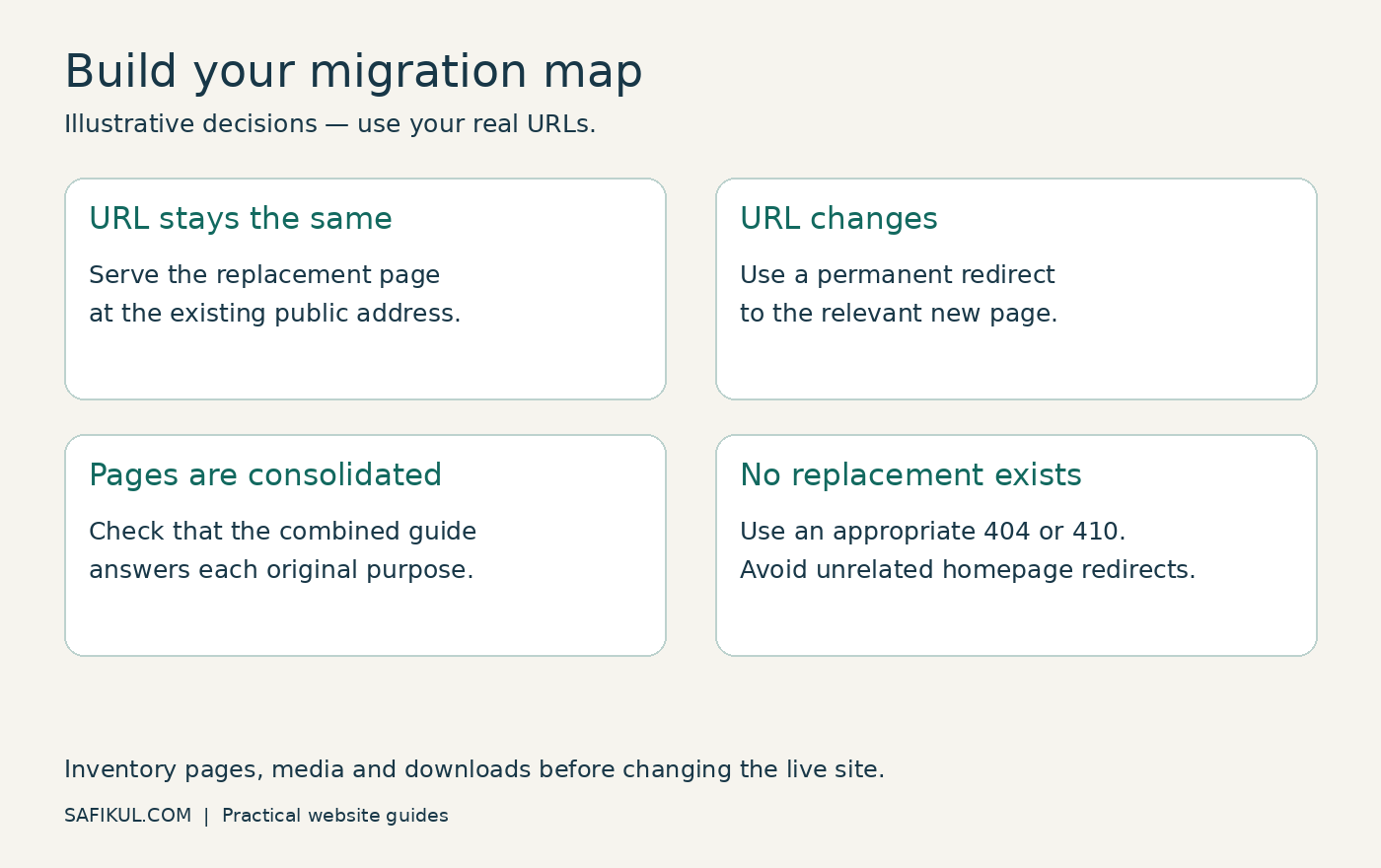
Keep the same public addresses when there is no good reason to change them. A move to WordPress does not require adding a new folder to every article or changing every slug.
For changed URLs, use a relevant destination and a permanent server-side redirect such as 301 or 308. Google’s site-move guidance recommends avoiding redirect chains and keeping redirects generally for at least a year. Search visibility can fluctuate during processing.
| Example decision | Action |
|---|---|
| /services/ stays /services/ | Serve the working replacement at the same address |
| /blog/email-tips becomes /email-marketing-tips/ | Redirect the old URL directly to the new article |
| Two overlapping guides become one useful guide | Review relevance before redirecting each old guide |
| An obsolete page has no replacement | Return an appropriate 404 or 410 instead of sending everyone to the homepage |
The examples are illustrative, not changes to Safikul.com. Do not paste them as rules on your own server. The final redirect list must match your actual URLs.
Check control of the old hostname. If your builder only gave you a subdomain that you cannot redirect, document that limitation before promising a seamless move.
Step 4 — Build on a protected staging site
Create a separate test installation and keep the current site available. Use authentication or an appropriate access restriction for private staging work. Search-engine discouragement alone does not make confidential drafts private.
Recreate the main page types first: homepage, service page, article, category and contact page. Transfer approved images and documents, then check their file paths and licences. Do not rely on images still loading from a builder account you plan to close.
I would review a representative sample early: one simple article, one media-heavy page and one page with a form. If the conversion produces broken layouts or uneditable content, finding that on three pages is cheaper than finding it after 300.
For the hosting portion, Google’s infrastructure migration guidance covers preparation, DNS cutover and monitoring both environments. A CMS rebuild needs content and feature checks in addition to hosting checks.
Step 5 — Preserve the content and verify SEO output
Compare the old and new versions side by side. Confirm that the answer, headings, examples, author attribution and contextual links survived. Avoid replacing specific useful explanations with generic AI-written summaries during the move.
Check the actual generated page, not only the SEO plugin fields. Inspect the title, description, canonical URL and indexing instructions. Staging-domain canonicals and forgotten noindex rules are launch blockers for pages intended to appear in search.
Use my canonical tag guide when multiple URL versions exist. Build a clean XML sitemap containing intended public canonical pages, and update internal links to the final destinations.
Review structured data against the new visible content. A copied schema block can retain an old image, publisher address or product detail. My schema markup guide explains validation without treating a valid test as a ranking guarantee.
Step 6 — Test the complete customer journey
A migration test should finish where the business receives the result. For a lead form, that means confirming the submission reaches the correct inbox or lead system. A green success message is not sufficient evidence.
- Submit a labelled test enquiry and verify delivery.
- Check mobile navigation, search and downloads.
- Test login and password reset if accounts exist.
- For a store, check payment status, stock changes and order emails using the provider’s supported test procedure.
- Confirm analytics events and consent behaviour without duplicating tracking scripts.
- Check redirected URLs, missing pages and both HTTP and HTTPS entry points.
Keep credentials and real customer records out of general-purpose conversion prompts. Use sample data when testing whether an AI-assisted tool can reconstruct a form or account page.
Step 7 — Launch with a rollback plan
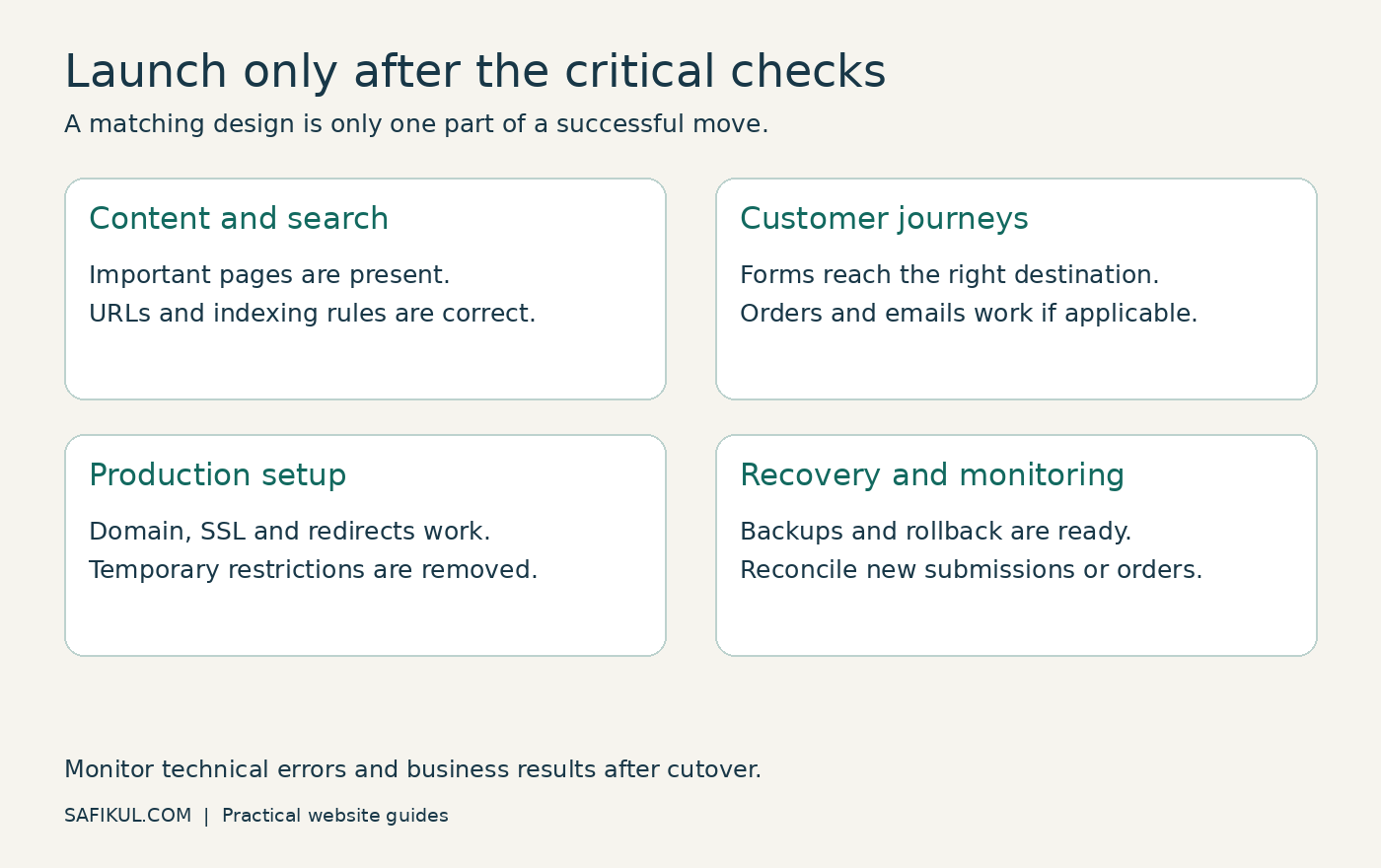
Schedule a quieter period and record the responsible contacts. Take fresh backups and decide how to handle content or orders arriving during cutover. If both environments can accept writes, information may split between them.
Confirm the production domain, SSL, redirects, final canonical URLs and removal of temporary indexing restrictions. Preserve DNS records needed for email and other services; a website migration should not accidentally replace unrelated records.
My launch gate would be: no broken critical forms, no missing high-value pages, no unintended public-content block, and no unresolved payment failure. Cosmetic improvements can follow; those failures cannot.
A rollback plan must explain how new submissions or orders will be reconciled. Switching DNS back without considering data written to the new site can create another problem.
Step 8 — Monitor problems by cause
Check business functions immediately. During the first week, review server errors, important pages and search reporting regularly. Keep monitoring longer for URL changes and larger sites.
| Observation | First investigation |
|---|---|
| Important pages return errors | Routing, redirects, server logs and missing content |
| Pages load but are excluded from indexing | Noindex, canonical choice and crawl access |
| Visits continue but leads stop | Form delivery, tracking and page usability |
| Search clicks fall with stable technical checks | Page/query trends, demand, result changes and content differences |
Do not label every dip a penalty. Compare the affected pages and dates with the migration log. Google’s traffic-drop guidance describes several possible causes, including technical changes and seasonality.
Frequently asked questions
Can I migrate an AI site to WordPress without coding?
A simple content site may be rebuilt with an appropriate importer and editor. Custom applications, account systems and unusual integrations may need development. Ask for a sample migration before committing to an automatic conversion service.
Will moving to WordPress improve rankings?
The platform change alone is not a ranking promise. Better content, reliable access and useful page experiences can help the site compete, but migration can also introduce errors. Evaluate the implementation and outcomes.
Do I need redirects if the domain stays the same?
Yes, if individual addresses change. If both the domain and a page’s full public URL remain unchanged, that page does not need a migration redirect merely because its CMS changed.
Should I rewrite AI-generated content during migration?
Correct serious factual errors before publishing them again. For broader improvements, keep a separate editorial plan so you can distinguish content changes from migration effects. Preserve useful original evidence and business details.
Can a migration preserve AI search visibility?
Keep valuable public pages accessible, preserve their useful explanations and maintain working links. No migration provider can guarantee continued citations across AI search systems. Review my WordPress AI SEO guide for the ongoing visibility work after launch.
Start with a migration map, not a theme purchase
I would begin with the current URL inventory and a short acceptance checklist. Those two documents tell you what the new site must preserve and how you will prove it works. Once the site passes those checks, a WordPress migration becomes a controlled change with observable results.