


To use Google Search Console, verify your website, inspect important URLs, submit your sitemap and review search performance by page and query. Then turn what you find into a short action list: resolve access problems, improve pages that miss the reader’s intent and monitor changes over comparable periods.
I recommend learning this before buying more SEO software. A dashboard cannot make business decisions for you, but it can help you stop guessing which pages appear in Google and which queries bring visitors.
This Google Search Console tutorial focuses on website owners, bloggers and small businesses. You do not need to code to read the reports, although DNS verification and some technical fixes may require help from your hosting provider or developer.
What is Google Search Console?
Google Search Console is Google’s free service for monitoring and troubleshooting your site’s presence in its search results. You do not need a paid advertising account, and signing up is not a requirement for appearing in Google.
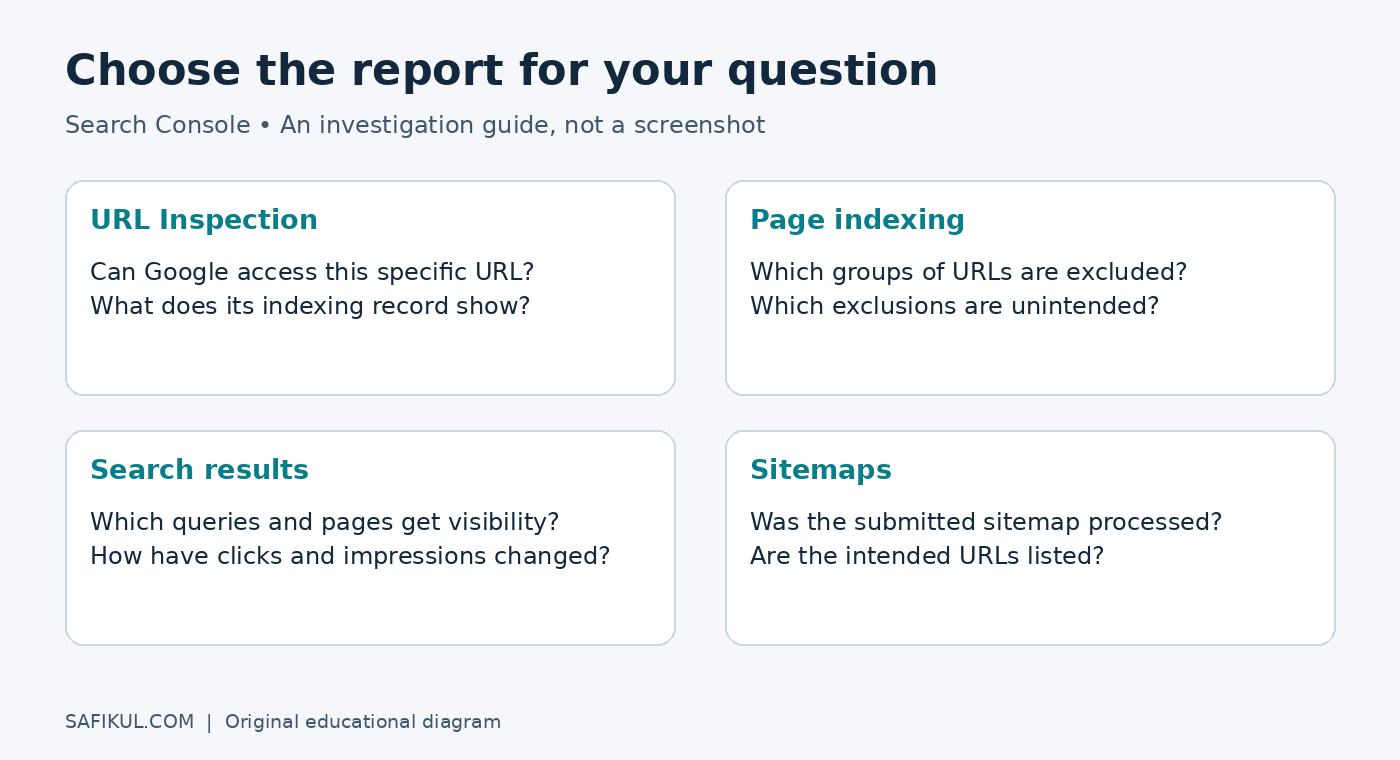
It helps answer questions such as: Can Google access this page? Is the preferred URL indexed? Which searches produced impressions and clicks? Have technical or security problems been reported?
It does not show every visitor from every channel, guarantee rankings or provide the total market search volume for a keyword. If your page received 100 impressions for a query, that is evidence about your site’s visibility, not proof that only 100 searches happened.
Step 1 Choose the correct website property
Sign in at Google Search Console using the Google account you intend to keep responsible for the website. Choose Add property. For websites, the main choice is Domain or URL-prefix.
- Domain: Covers the domain across protocols and subdomains. Enter the domain without https. This uses DNS verification.
- URL-prefix: Covers URLs beginning with the exact prefix you enter. The protocol and subdomain matter, and several verification methods may be available.
I would choose a Domain property when the business controls its DNS and wants a broad view. A URL-prefix property can be useful when you only manage one section or cannot change DNS. Follow Google’s property setup instructions for your situation.
For example, a URL-prefix property for https://www.example.com/ is different from one for https://example.com/. A mismatch can make a report look empty even when the site gets traffic.
Step 2 Verify ownership and retain control
For DNS verification, copy the record supplied by Google into the DNS management area for your domain. Add the requested record without deleting existing email or website records. Return to Search Console and verify after the change becomes available.
For a URL-prefix property, use a verification method Google offers, such as an HTML tag or file. Keep the verification token in place after success. Google’s ownership verification documentation explains the options and common failures.
If you work with an agency, retain ownership under a business-controlled account and grant appropriate access. Avoid sharing your main password. Good access management makes a future agency or employee change much easier.
Step 3 Submit the sitemap your site actually uses
Open your site’s XML sitemap in a browser first. Confirm that it contains relevant public URLs, then submit its address through the Sitemaps report. Your CMS or SEO plugin may generate a sitemap index that points to separate post and page sitemaps.
Do not assume every site uses /sitemap.xml. Find the actual address in your CMS or SEO plugin settings. Google explains sitemap creation and submission in its sitemap documentation.
A successful submission means Google could process the sitemap; it does not promise that every listed URL will be indexed. Keep important pages connected through navigation and contextual links as well.
Step 4 Inspect one important URL
Paste the complete URL of a valuable article or service page into URL Inspection. Review the indexing information and any reported problem. Where available, compare the indexed information with a live test of the current page.
The URL Inspection documentation distinguishes Google’s stored information from live testing. A live test passing does not mean Google has already indexed the latest version or will rank it.
After fixing a meaningful problem or publishing an important update, you can request indexing when the tool allows it. Repeated requests are not a substitute for resolving the underlying issue.
Step 5 Read clicks impressions CTR and position together
Open the Search results Performance report. Select a date range and enable the metrics you need. Google’s Performance report guide defines four core measures:
- Clicks: Clicks from Google results to your site.
- Impressions: Recorded appearances of your site in search results.
- CTR: Clicks divided by impressions, expressed as a percentage.
- Average position: The average position of the topmost result for the relevant grouping.
Average position is not a fixed rank seen by every searcher. Country, device, query mix and timing affect the picture. Begin with one page and a relevant query group rather than interpreting a sitewide average as a single ranking.
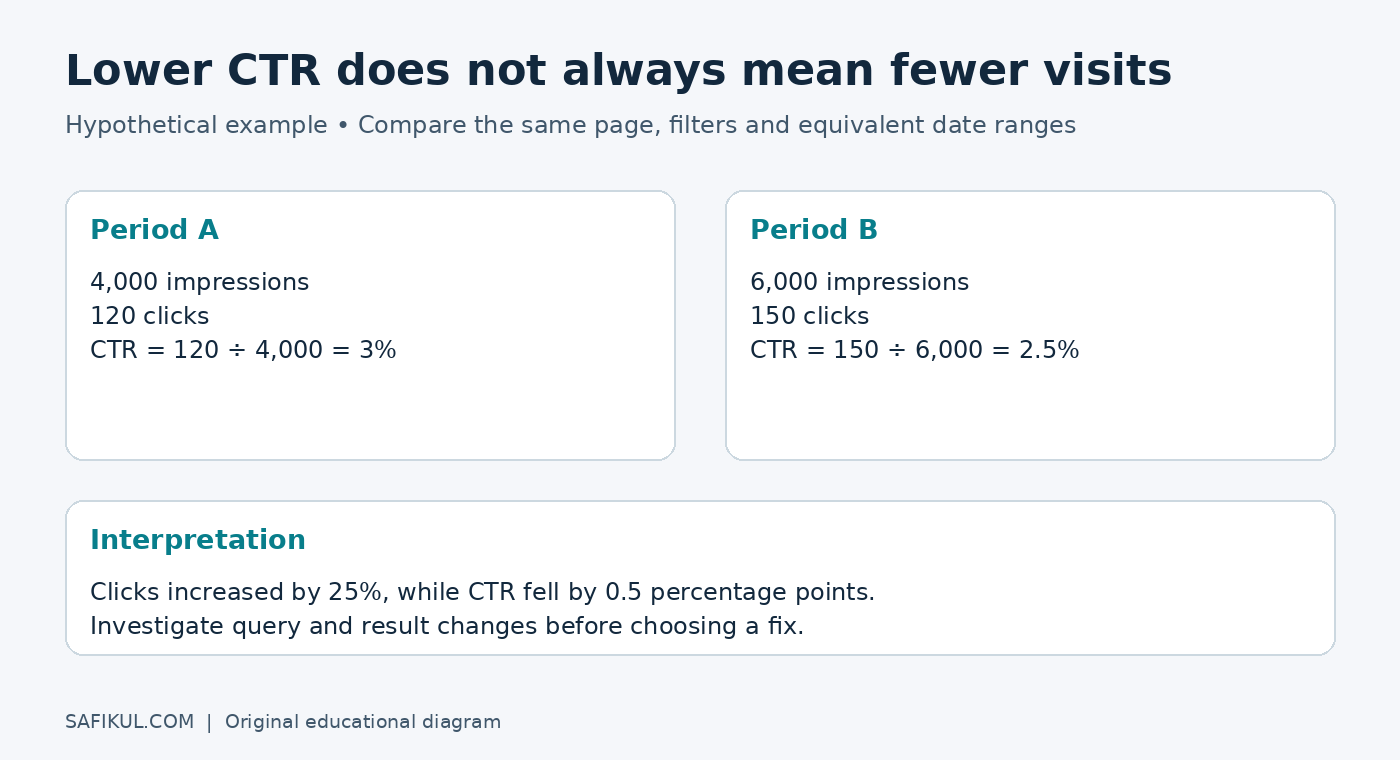
Hypothetical example: A guide records 4,000 impressions and 120 clicks in one period. Its CTR is 3%. In the next comparable period it records 6,000 impressions and 150 clicks: CTR falls to 2.5%, while clicks increase by 25%. Calling that a traffic loss because CTR fell would miss what happened.
Investigate the extra impressions. They may come from new queries where the page ranks lower, a different device mix or changing result layouts. The numbers identify the next question; they do not explain the cause by themselves.
Step 6 Find useful keyword opportunities
Filter the report to one important page, then examine the Queries tab. Look for questions that fit the page’s purpose but are answered poorly. Open the article and check whether the searcher’s likely task is actually completed.
My approach is to improve the existing page when the query belongs to the same intent. I would create another article only when it solves a distinct problem. Publishing a new page for every keyword variation can leave readers facing several overlapping guides.
For instance, a beginner store tutorial might need a clearer payment-testing section. A detailed checkout-error investigation could deserve its own guide. Decide based on the task, not just word similarity.
Search Console only reveals demand where your site has recorded visibility. Broaden your research with Google Trends for relative interest and keyword research tools such as Ubersuggest for labelled estimates. Keep those different data types separate.
Step 7 Investigate indexing exclusions selectively
The Page indexing report groups URLs by indexing status and reasons. Your goal is not to make every excluded URL green. Redirects, duplicates and intentionally excluded pages can be normal.
- Important page excluded by noindex: Check whether exclusion was deliberate before removing it.
- Page with redirect: Inspect the destination and update internal links if they use an obsolete address.
- Crawled but not indexed: Review the page’s usefulness, duplication and internal connections; the status alone does not identify one guaranteed fix.
- Server error: Ask the developer or host to investigate availability and logs.
Prioritise pages that customers need. A missing service page is generally more important than an old filter URL that should never have appeared in search. Use relevant internal links to make important destinations easier to reach, while addressing technical problems separately.
Step 8 Build a manageable review routine
For an actively publishing business, I would use a short weekly check and a deeper monthly review. A quiet small site may need less frequent attention unless an alert arrives.
- Read alerts and check unexpected problems affecting important pages.
- Compare complete, similar date ranges, keeping country and device filters consistent.
- Select a few pages with meaningful changes in clicks or visibility.
- Write one specific action for each page and record the date.
- Revisit the same filters after enough new data accumulates.
Check seasonality before rewriting a page after a short dip. If the change looks unusual across the site, consult Google’s data anomaly notes as well as your own change log.
Search Console versus Google Analytics
Use Search Console to investigate Google search visibility and indexing. Use your analytics setup to understand what visitors do after they arrive, across the traffic sources you measure. A search click and an analytics session are different events, so their totals are not expected to match perfectly.
For a business, I would connect the questions: which landing pages receive relevant search visits, and do those visitors complete useful actions? My UTM campaign tracking guide covers consistent tracking for campaigns outside this organic-search workflow. Do not add campaign tags to ordinary internal navigation just to monitor internal clicks.
What about AI search reporting?
Google’s current generative AI search guidance points website owners to its Generative AI performance report. Check the reports and documentation available for your property rather than assuming an older tutorial’s interface applies to every account.
The official AI performance report documentation describes impressions for AI Overviews and AI Mode. If the report is missing, the site may not have enough qualifying impressions. These are visibility measures, not a sales report.
Google’s reporting does not measure every mention in ChatGPT, Claude or other services. Use a separate measurement plan for those platforms and distinguish a citation, a referral visit and a conversion. My AI referral tracking guide explains the visit-tracking part.
Frequently asked questions
Is Google Search Console free?
Yes. The core service is free, and you do not need to buy Google Ads to use it.
Why does a new property show no data?
Check that you selected the correct property, dates and filters, and allow time for reports to populate. A site with little search visibility may have little performance data. Inspect an important URL rather than assuming the account is broken.
Does adding Search Console improve rankings automatically?
No. Its value is the information you use to improve the site. Verification itself is not a ranking shortcut.
Should I request indexing every day?
No. Use requests thoughtfully after important changes and fix access or content issues first. Google decides whether and when to index a page.
Can I use it without understanding SEO?
Yes. Start with one page, one report and one question. Learn the broader fundamentals through my SEO checklist rather than trying to interpret every report at once.
Start with one business decision
Verify your property, inspect your most useful page and identify one improvement from real data. That is a stronger starting point than watching a dashboard every hour. At Leelija, the business question I want our work to answer is straightforward: are we helping the right people find the information and services they need?
Pingback: Keyword Cannibalization: Find and Fix Harmful Overlap