


A canonical tag tells search engines which URL you prefer when duplicate or very similar versions of a page exist. It belongs in the HTML head and uses rel="canonical". Google treats that preference as a signal, so your chosen URL and Google’s selected URL can differ.
My advice is to start with the business decision: which page should a customer find, and which versions still need to exist? Once that is clear, the technical setup becomes much easier. Adding a tag without answering that question can hide the very page you want people to discover.
This guide explains canonical URLs, WordPress setup, common mistakes and a practical audit you can run on your important pages.
What is a canonical URL?
A canonical URL is the representative address selected from a group of duplicate pages. Your website can declare a preferred address, while Google makes its own selection during indexing. Google’s explanation of canonicalization makes clear that ordinary duplicate content is not automatically a spam-policy violation.
Consider this hypothetical product guide:
https://example.com/coffee-grinder-guide/https://example.com/coffee-grinder-guide/?utm_source=newsletter
If both show the same guide, the clean address is a sensible preferred URL. The campaign address can remain useful for visitors arriving from an email. A canonical does not remove the campaign parameters from the browser or merge your analytics reports automatically. For campaign measurement, see my UTM tracking guide.
Canonical tag example and how to read it
<link rel="canonical" href="https://example.com/coffee-grinder-guide/">This example belongs inside the page’s <head>, not in a paragraph or a Custom HTML block in the article body. The href is the complete preferred address. On that preferred page, the same address creates a self-referencing canonical.
In Google’s canonical implementation guidance, redirects and canonical annotations are strong signals; sitemap inclusion is weaker. Consistent signals can reinforce one another. A canonical remains a preference rather than a guaranteed instruction.
I recommend recording one preferred URL for each important piece of content before editing anything. Use that address in internal links, the sitemap and the canonical setting. This simple URL inventory makes later troubleshooting much more manageable.
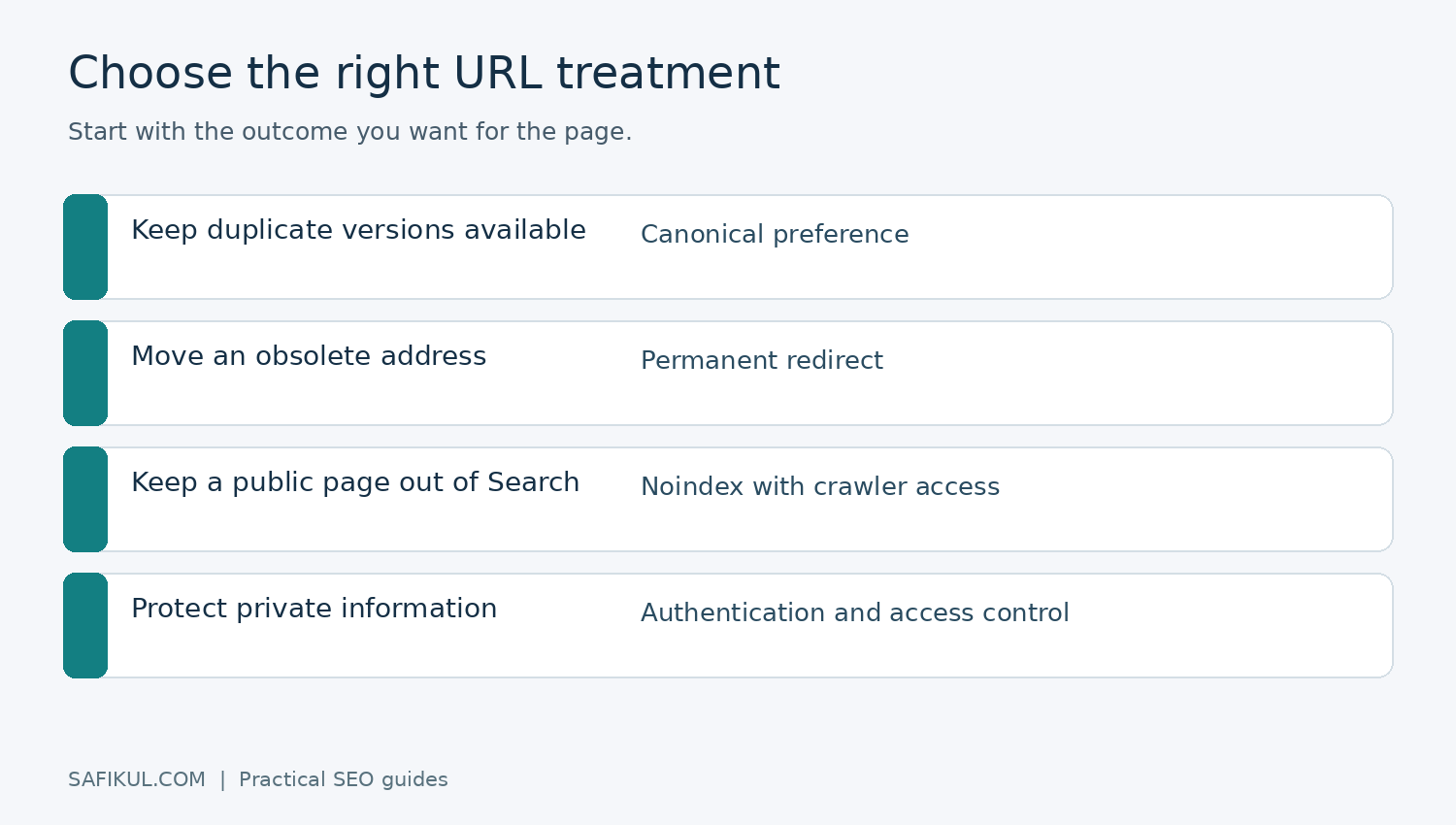
Canonical tag vs 301 redirect vs noindex
| Your goal | Usually appropriate | What visitors experience |
|---|---|---|
| Keep similar versions accessible but nominate one | Canonical annotation | Each version can still open |
| Move an obsolete page to its genuine replacement | Permanent redirect | Visitors reach the replacement |
| Keep a public page out of search results | Noindex, with crawler access | The page remains accessible |
| Protect confidential material | Authentication or access controls | Access requires permission |
For example, if you replace an outdated service URL, sending visitors to the new service page is usually more helpful than leaving an abandoned version online. If a print-friendly version must remain usable, a canonical may fit better.
Google’s noindex guidance explains that the crawler must reach the page to read the rule. A robots.txt block can prevent that. Canonical tags, noindex and robots.txt serve different purposes; none is a password. My robots.txt guide explains the access distinction.
How to set a canonical URL in WordPress
First inspect the current page source. Your SEO plugin may already generate the correct canonical, and another manual tag could create a conflict. Do this on the public page while logged out, since cached output may differ from the editor.
- Choose the intended page. Open both addresses and compare their main content. Do not rely only on similar titles.
- Inspect the destination. Confirm it opens normally, contains the intended content and is not intentionally excluded from search.
- Use the existing SEO plugin. In Yoast SEO, open the relevant post or page, expand Advanced in the Yoast sidebar, enter the full address in Canonical URL and save. See Yoast’s canonical instructions.
- Check the output. View source again and search for
canonical. Record the address actually printed, rather than assuming the saved field proves the public result. - Review related signals. Check navigation, contextual links and the sitemap for old addresses.
A blank custom canonical field does not necessarily mean the page has no tag; the plugin may supply a default. Avoid filling every field just to make an SEO checklist look complete. For a template-wide change, test a small representative set first: a post, a page, a product and a category archive.
How to check the Google-selected canonical
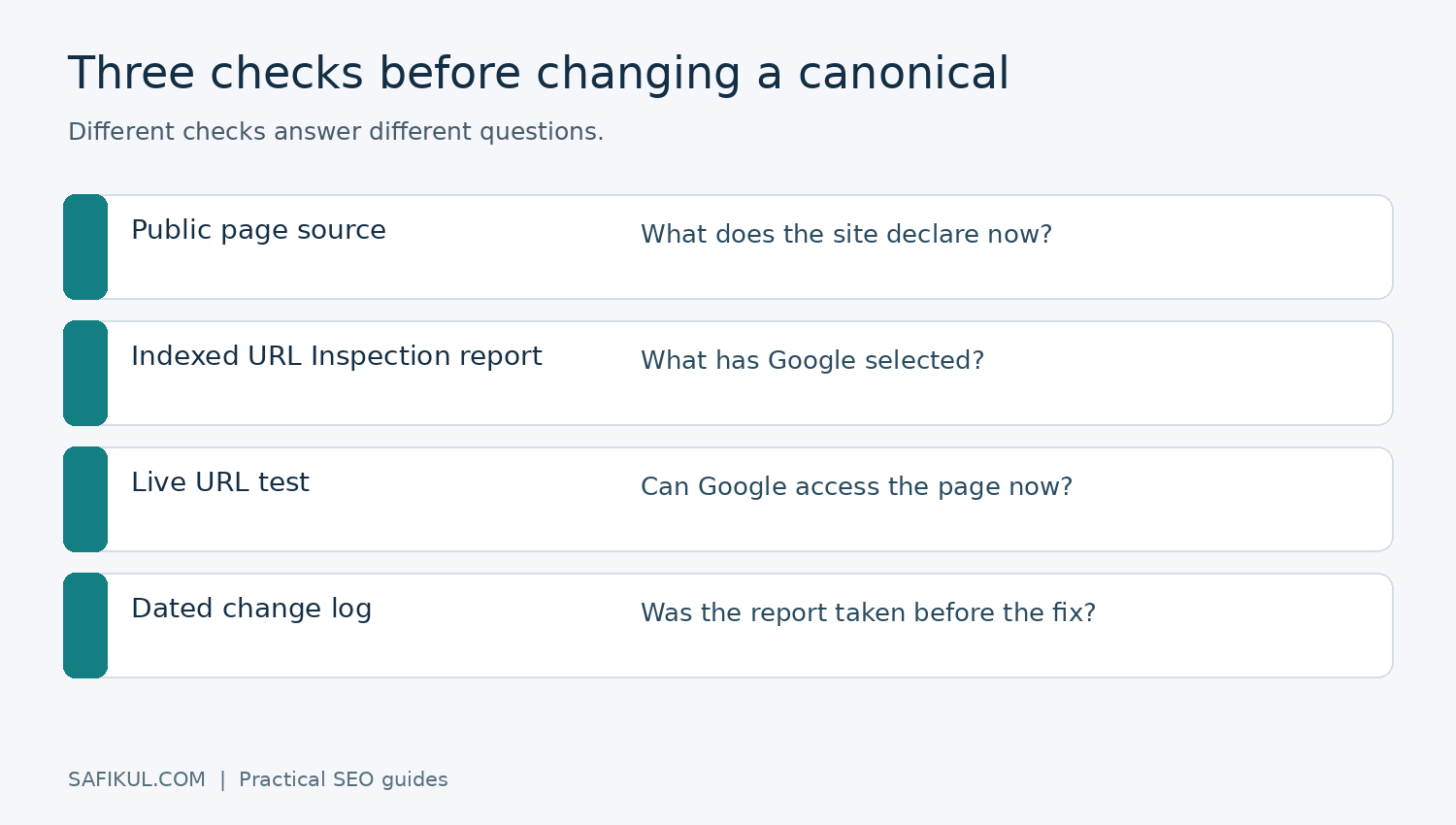
Open URL Inspection in Google Search Console, enter the exact URL and expand the indexing information. Compare the user-declared and Google-selected canonical when those fields are available.
The indexed report reflects what Google has processed. The live test checks the current page but cannot predict Google’s eventual canonical selection. A successful live test is useful evidence of access, not confirmation that Google has adopted your preferred URL.
My suggested audit sheet has six columns: inspected URL, intended canonical, printed canonical, Google-selected canonical, last crawl date and next action. This stops a common mistake: comparing today’s corrected page with yesterday’s indexed report and assuming the correction failed.
If Search Console is new to you, follow my beginner’s Search Console guide before changing settings across the site.
What to do when Google chooses a different canonical
Start by comparing the two pages as a customer would. Are they actually different resources, or have you published the same answer twice with new headings? Google’s troubleshooting documentation recommends reviewing technical signals and whether clustered pages are sufficiently different.
Here is a hypothetical example. A business has separate pages called “SEO services” and “SEO packages,” but both contain the same paragraph and contact form. Changing the canonical tag alone does not make the second page more useful. The owner could develop a genuine package comparison with scope, exclusions and suitability, or consolidate the pages if there is no separate customer need.
I would investigate in this order:
- Wrong destination, accidental homepage canonical or leftover staging domain.
- Multiple conflicting annotations from a theme and plugin.
- Destination errors, redirect chains or indexing restrictions.
- Internal links and sitemap entries favouring a different address.
- Main content that does not justify a separate page.
Make a recorded correction, request indexing for the important affected URLs where appropriate, and allow time for processing. Keep a dated before-and-after record. Avoid changing the destination every day while waiting for the report to update.
Common canonical mistakes worth avoiding
Treating every similar keyword as duplicate content
A beginner tutorial and a troubleshooting guide can target related words while answering different needs. Do not collapse them simply because a keyword appears on both. If the issue is overlapping editorial intent, use my keyword cannibalization guide to decide whether to improve, combine or retain the pages.
Using a homepage canonical everywhere
This tells a search engine that individual pages should be treated as versions of the homepage. That rarely matches what a business wants. Check a few unrelated articles after a theme migration or a new SEO integration.
Assuming the tag fixes every duplicate automatically
A canonical is not a general repair for thin pages, broken navigation or inconsistent URL management. Review what created the duplicates. Fixing an incorrect template can be more durable than adding exceptions one post at a time.
Changing settings without a rollback record
Save the old setting and list the affected templates. If a new configuration unexpectedly affects hundreds of pages, that record lets your developer restore the previous behaviour and investigate calmly.
Do canonical tags help AI search visibility?
Clear URL management supports an understandable, accessible site. It does not guarantee that an AI system will cite your article. For Google’s AI features, Google says a supporting page must be indexed and eligible for a search snippet; there is no special canonical tag for AI Overviews or AI Mode.
My recommendation is to keep one dependable address for each useful resource, publish clear explanations and link related guides naturally. Fixing the canonical should support your content, not become a substitute for improving it.
A practical canonical audit checklist
- Identify the intended address for each priority page.
- Compare duplicate versions before deciding to consolidate.
- Inspect the public HTML and destination response.
- Check for conflicting plugin or theme output.
- Align internal links and sitemap entries.
- Compare indexed Search Console data with the correction date.
- Monitor the intended page’s impressions, clicks and business enquiries.
Start with five commercially important pages. A careful small audit is more useful than a site-wide change you cannot explain or reverse.
Frequently asked questions
Is a canonical tag required on every page?
Google can select a canonical without an explicit tag. A consistent self-referencing setup is useful for indexable pages, but do not treat a missing tag alone as proof of a ranking problem.
Will a canonical tag redirect visitors?
No. Visitors can remain on the address they opened. Use a redirect when the visitor should move to a replacement URL.
Is an alternate page with a proper canonical always an error?
No. If that URL is an intentional duplicate and the correct representative page is selected, the outcome may match your plan. Investigate when the excluded URL is supposed to be a distinct resource.
How quickly will Google accept a correction?
There is no fixed acceptance deadline. Google must recrawl and process the relevant information, and it can still choose a different URL. Track the correction date and review evidence rather than repeatedly changing settings.
Pingback: XML Sitemap Guide: Create, Submit and Fix Your WordPress Sitemap