


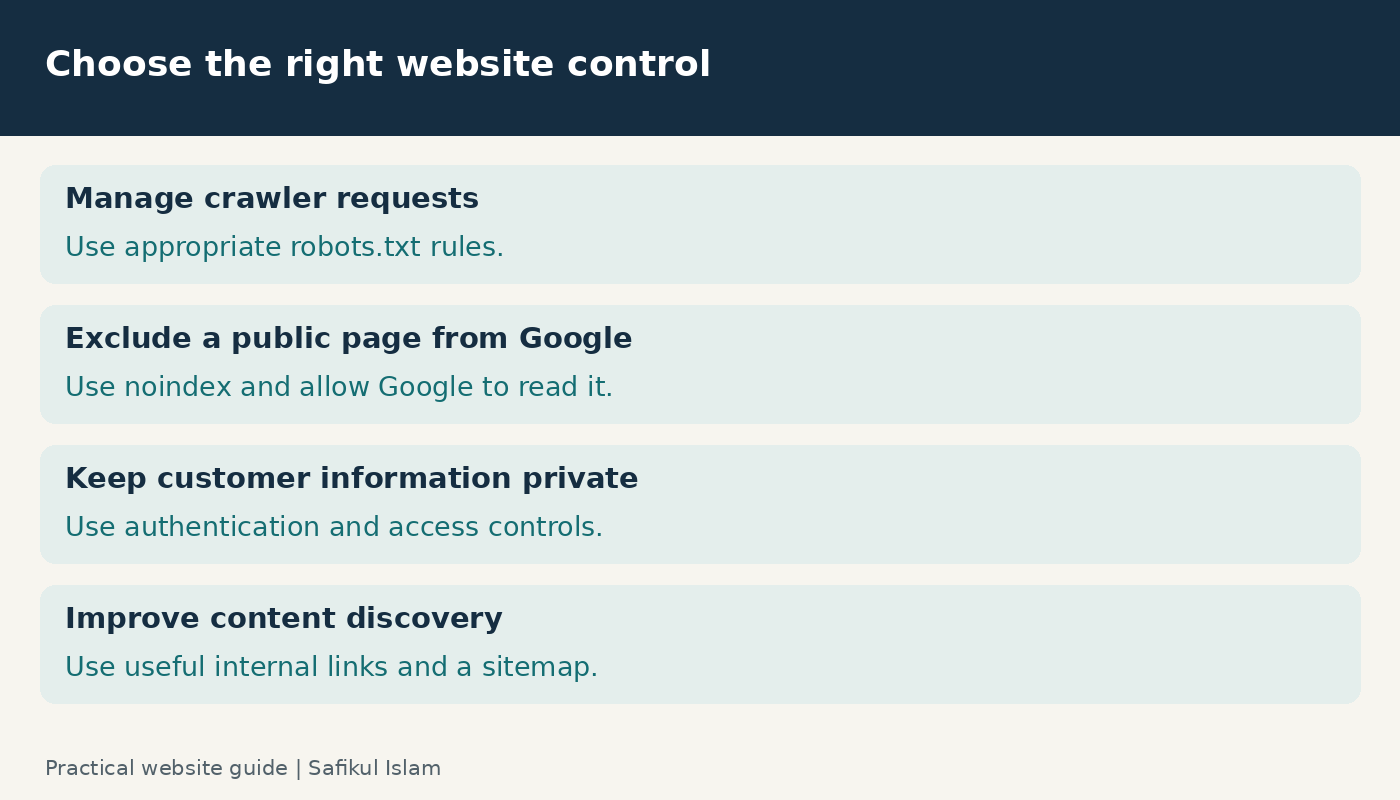
Robots.txt is a public text file that tells cooperating crawlers which website paths they may fetch. It helps manage crawling, but it does not protect private information or reliably remove a page from Google. If your goal is to stop a public page appearing in search, you usually need a crawlable noindex instruction instead.
For a business owner, the important question is what you want a particular URL to do. Should customers find it in search? Should it remain available only to logged-in users? Or is it an unnecessary URL variation that crawlers keep requesting? I recommend answering that question before editing any rules.
This guide explains robots.txt for SEO, shows a small WordPress example, and gives you a testing process you can use before and after a change.
What robots.txt can and cannot do
According to Google’s robots.txt introduction, the file mainly manages crawler access and request traffic. A blocked page can still have its URL listed in Google if the search engine discovers it elsewhere. Blocking access also prevents Google from reading changes on that page.
Think about a publicly accessible invoice URL. Adding it to robots.txt would not make it private. Anyone with the address might still open it, and the robots.txt file itself could reveal the path. Sensitive information needs authentication and appropriate server access controls.
Where to find your robots.txt file
Try https://example.com/robots.txt, replacing the example domain with your own. Use the exact hostname your website serves. A subdomain can have its own file, so checking the main domain does not establish what happens on a separate shop or help subdomain.
Google’s file-creation instructions specify a plain-text file named robots.txt at the site root. Pages are allowed for crawling unless applicable rules restrict them. The file may be generated by your platform rather than stored as a physical file.
Save a copy of the response before editing. Also record which system controls it: your hosting file manager, application code, SEO plugin or CDN. Changing the wrong copy can leave the public response untouched.
How to read robots.txt rules
A User-agent line identifies the crawler group. Disallow restricts matching paths, while Allow can permit a more specific path. A Sitemap line supplies a full sitemap URL. It does not override a crawl restriction.
For Google, field names and user-agent values are case-insensitive; URL paths are case-sensitive. Google selects the most specific matching user-agent group. Within applicable rules, the most specific matching path wins; equally specific conflicting rules resolve in favor of access. See the official robots.txt specification for edge cases.
A practical example: a restriction on /drafts/ and a more specific permission for /drafts/public-demo/ can allow the demo while restricting other paths under that folder. Check actual URLs rather than deciding from the wording of the folder names.
A small WordPress robots.txt example
WordPress’s default robots output includes an admin-path restriction and an exception for its AJAX endpoint. For a standard root installation, the following illustrates that pattern. It is not a universal replacement for your current configuration.
User-agent: *
Disallow: /wp-admin/
Allow: /wp-admin/admin-ajax.php

Sitemap: https://example.com/sitemap_index.xml
The sitemap address is a placeholder: use the sitemap that actually opens on your website. Your installation may use a different path. Do not paste the example domain into a live file.
Before changing anything, check whether your SEO plugin already controls the response. If a developer maintains the file, send them the intended URL behavior and test cases. That is more useful than asking for an “SEO-optimized robots file” without defining the problem.
How to test a robots.txt change
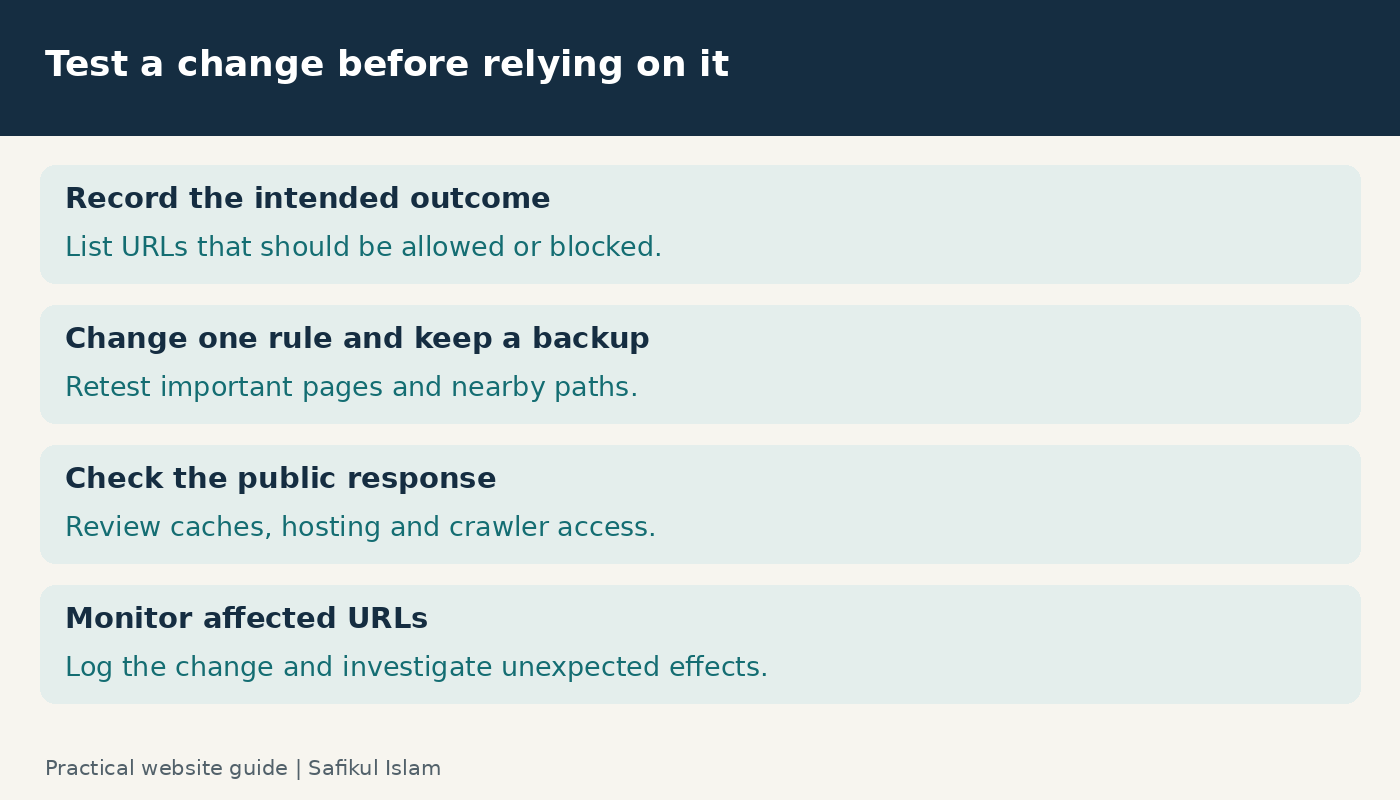
- Choose representative URLs. Include the homepage, an important article, a product or service page, a relevant image, and a URL you intend to restrict.
- Write the expected result. Mark each URL as allowed or blocked for the particular crawler you are investigating. Include one nearby URL that must remain accessible.
- Review the proposed rules. Use a robots parser that supports the crawler’s interpretation. Do not treat a successful file download as proof that every path is allowed.
- Save and deploy a small change. Keep the previous version so you can restore it quickly.
- Fetch the public file again. Confirm the expected response, including any cached version your CDN serves.
- Inspect important pages. Use Search Console’s URL Inspection and live testing to investigate access. Record the date and distinguish the indexed information from the current test.
- Monitor the result. Check affected URLs and server logs where available. Crawlers can cache rules, so a successful deployment does not establish immediate reprocessing.
My Google Search Console guide explains the broader inspection workflow. I would keep a simple change log with the rule, reason, affected URLs and person responsible.
Fixing common robots.txt problems
An important page is blocked
Find the exact rule matching that URL. Look for a broad folder restriction or a site-wide Disallow: / left over from development. Fix the narrowest relevant rule, then retest other pages in the same section. Avoid removing all existing restrictions without understanding their purpose.
A blocked URL still appears in Google
If a public page should be excluded from search, Google’s noindex guidance explains that the instruction belongs in a robots meta tag or an HTTP response header. Google must be able to crawl the URL to see it. A robots.txt block can prevent that discovery.
For example, a public thank-you page might remain accessible to customers while carrying noindex. A private customer dashboard needs authentication. Do not remove access protection from private information just to let a crawler read a tag.
The file looks correct but access still fails
Check the rest of the delivery path. Hosting errors, a firewall challenge, a login requirement or a security plugin can stop access independently of robots.txt. Compare a normal browser request with the reported crawler failure, then ask your host to investigate the actual response. Do not disable security protections across the site as a first step.
Someone recommends blocking every archive or parameter
Ask for evidence first. A category page may be a useful search landing page, while a parameter may generate unnecessary variations. Those are different cases. Review the pages, their purpose and any search performance before making a blanket rule. For overlapping content, use the decision process in my keyword cannibalization guide.
Do small websites need crawl budget optimization
Usually, their first task is to keep useful pages accessible and easy to discover. Google’s crawl-budget guide targets large or rapidly changing websites and says simpler monitoring is enough for many smaller sites.
I would prioritize broken navigation, accidental restrictions and useful internal links before building a complicated list of crawl rules. A longer file is not evidence of better SEO.
Robots.txt and AI search visibility
Google’s AI search guidance includes crawl access among the existing SEO fundamentals. Allowing access is only one condition; it does not guarantee an AI citation or search placement. Other providers can use different crawlers and controls, so check each provider’s current documentation before copying an “allow AI” or “block AI” template.
For your team, document the intended outcome separately for ordinary search, AI search discovery and any other data use. Then verify that the actual rules match that decision. A crawler name that sounds relevant is not enough evidence.
Robots.txt questions
Does every website need a custom robots.txt file
No. Start by reviewing the response your platform already provides. Add custom rules when you have a specific crawling requirement and a way to test it.
Will robots.txt improve rankings
Correcting an accidental block can restore access to useful content. A new file by itself does not establish that a page will be indexed or rank better.
Should I copy a competitor’s robots.txt
No. Their URL structure and application may work differently. Copying a restriction without mapping it to your own pages can create an avoidable problem.
What should I do first
Open your public robots.txt, save a copy and test your three most valuable URLs. If they are accessible and you have no demonstrated crawling problem, concentrate on your content and the wider SEO best practices checklist.