


A WooCommerce checkout stuck loading usually means a checkout request or browser script has failed. The cause may be caching, a plugin or theme conflict, an invalid server response, or a payment integration. The reliable fix is to identify where checkout stops, inspect the failed request, correct the cause and complete a test order.
For a store owner, the checkout page is where all the effort spent attracting customers must turn into a successful purchase. I would treat a persistent checkout spinner as a priority, while keeping changes controlled so troubleshooting does not create another problem.
In this guide, I explain how to investigate classic checkout and Checkout Blocks, including missing payment fields, failed order updates and a Place Order button that does not respond.
Quick answer for a checkout that keeps loading
Start with these checks:
1. Check whether an order or payment already exists before retrying a failed submission.
2. Identify whether the problem appears on page load, after an address change or after Place Order.
3. Inspect the browser Console and the failed Network request.
4. Verify checkout cache exclusions and test script optimization settings.
5. Isolate plugin, theme or payment conflicts on staging.
6. Retest the full purchase journey after the fix.
Do not hide the WooCommerce spinning wheel with CSS or force-enable the submit button. The visible loader may disappear while the transaction remains broken.
Before you change anything
Take a current backup and use a staging copy for plugin deactivation, theme changes and code edits. Keep test payments, customer emails and external integrations under control on staging.
Record the last known working time and recent changes: a plugin update, a new checkout field, a caching rule or a payment configuration change. This gives you a useful starting hypothesis without assuming that the most recent update is definitely responsible.
If a shopper clicked Place Order and the page froze, inspect WooCommerce orders and the payment provider’s dashboard first. A failed browser response is not proof that no payment occurred. Repeated submissions can complicate payment reconciliation.
Step 1 — Identify exactly where checkout stops
A WooCommerce checkout page not working can describe several different failures. Use the stage of failure to choose the next check.
| What you see | Where to investigate first | Useful evidence |
|---|---|---|
| Checkout not loading at all | Page assignment, page content and initial request | Blank page, 404 or server error |
| Order review stuck loading | Totals request and its response | Failed request after address or shipping changes |
| Credit card fields missing | Gateway scripts and configuration | Console errors and gateway logs |
| Place Order does nothing | Validation and JavaScript | Whether a submission request starts |
| Spinner continues after submission | Checkout response and payment result | Order number, request and gateway event |
| Checkout keeps refreshing | Redirects or repeated update triggers | Document reloads versus repeated background requests |
The table is a diagnostic starting point, not a promise that a particular symptom has only one cause.
Confirm the checkout page exists and is assigned
Go to WooCommerce > Settings > Advanced and check the Checkout page assignment. Then edit that page and confirm it contains the intended checkout content.
A missing page or incorrect assignment is different from a working form with an endless spinner. WooCommerce’s page display troubleshooting guide covers missing pages and incorrect page output. You can also explore my WooCommerce guides for related store setup topics.
Step 2 — Check whether you use classic checkout or Checkout Blocks
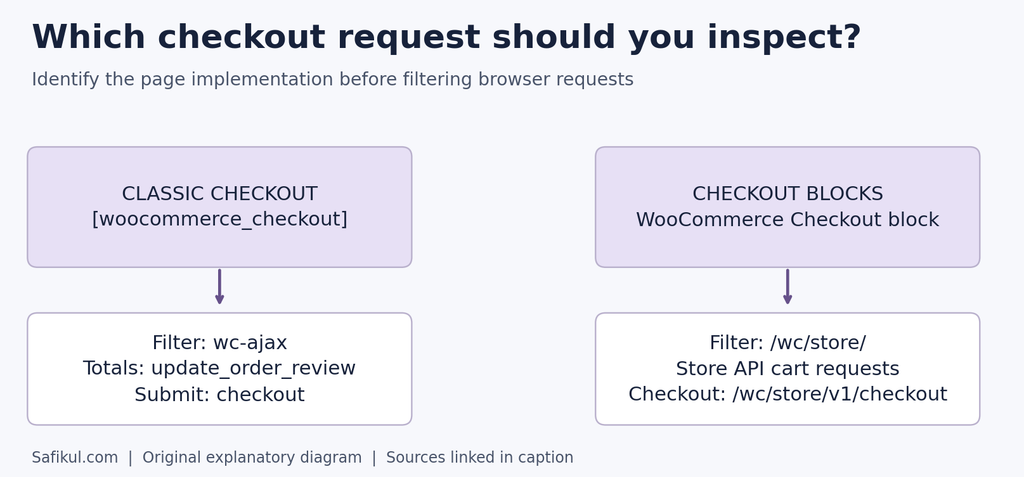
Open the checkout page in the WordPress editor. A Checkout block indicates block-based checkout. A Shortcode block containing [woocommerce_checkout] indicates classic checkout. A checkout builder may add its own behavior, so check its documentation too.
For classic checkout, useful Network filters include wc-ajax and update_order_review. A typical totals-update request contains:
?wc-ajax=update_order_review
Order submission commonly uses:
?wc-ajax=checkout
If you are investigating “WooCommerce update order review failed,” inspect the actual request made by your store rather than typing the endpoint into a new tab. The browser sends session and form information that a manually opened URL may lack.
Checkout Blocks use the WooCommerce Store API. Look for requests containing /wc/store/, including checkout requests such as:
/wp-json/wc/store/v1/checkout
The Checkout API documentation describes checkout data and order processing. Do not expect a block checkout to expose every classic AJAX request.
Step 3 — Inspect Console and Network errors
You do not need to understand every request. Start with the one that appears when the problem occurs.
1. Open the checkout in Chrome and open Developer Tools.
2. Select Network, enable Preserve log if redirects are involved, and select Fetch/XHR.
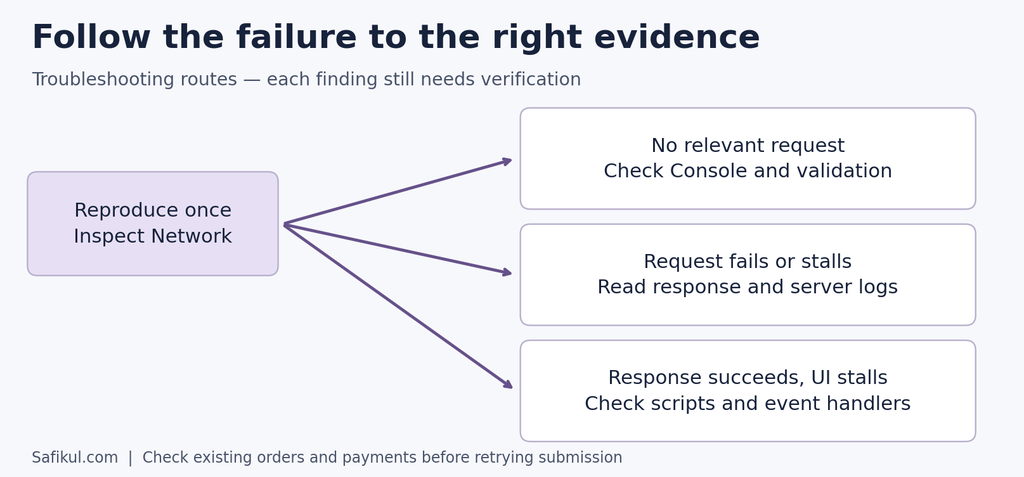
3. Reproduce the problem once using test details.
4. Filter for wc-ajax on classic checkout or /wc/store/ on Blocks.
5. Select the relevant request and inspect Headers, Response and Timing.
6. Open Console and record related JavaScript errors.
If no relevant request appears, remove the filter and inspect all requests before concluding that none was sent. Chrome’s Network panel guide explains how to inspect requests and trace their initiators.
What the response can tell you
| Observation | Possible explanation | Next action |
|---|---|---|
| 200 with unexpected HTML | Login page, challenge page or other wrong output | Read the body and trace its source |
| 401 or 403 | Authentication, security validation or access rule | Read the error and match it to security logs |
| 404 | Incorrect route or missing resource | Verify the requested URL and routing |
| 429 | Rate limit reached | Check the relevant limiter and request pattern |
| 500 | Server-side failure | Match the timestamp to PHP logs |
| 502 or 504 | Upstream failure or gateway timeout | Ask the host to trace the request |
| Valid JSON with an error | Application validation or checkout failure | Read the error fields and visible notices |
These interpretations combine HTTP status meanings with the checkout context. A status code points to a category; the response body and logs identify the cause.
A 200 response is not enough to declare success. Likewise, valid JSON can still report a failed checkout.
For classic checkout, WooCommerce documents unexpected HTML responses and a -1 response associated with security validation and cached nonces. Follow its endless spinner troubleshooting guidance when that evidence appears. Do not disable nonce checks to silence the error.
Step 4 — Check whether cache or script optimization is interfering
If checkout works for an administrator but fails for guests, I would check caching early. That difference is a clue, not proof.
WooCommerce’s caching configuration guidance says Cart, Checkout and My Account need dynamic, customer-specific content. Verify exclusions using your actual page URLs, including any translated or renamed checkout path.
Review each active layer: the WordPress cache plugin, hosting cache and CDN. Purge stale cached content after correcting a rule. A browser’s Disable cache checkbox does not bypass a server or CDN cache.
Check session-aware behavior as well. Relevant cookies include woocommerce_items_in_cart, woocommerce_cart_hash and the wp_woocommerce_session_ prefix. Use your provider’s WooCommerce integration instructions instead of pasting a rule intended for a different caching system.
On staging, temporarily turn off JavaScript delay, combination or minification and repeat the test. If checkout recovers, re-enable settings individually to isolate the cause. The permanent fix should be an appropriate exclusion or corrected configuration, not an unexplained collection of disabled options.
Ask the host to verify that customer-specific checkout and cart API responses are not being served from an inappropriate shared cache.
Step 5 — Isolate plugin and theme conflicts
A WooCommerce checkout plugin conflict can involve an extension that does not appear directly related to payments. A theme conflict can also affect the checkout’s scripts or templates.
Follow WooCommerce’s official conflict-testing process on staging:
1. Record the active software versions and preserve a backup.
2. Test a default supported WordPress theme or Storefront.
3. Keep WooCommerce and the payment extension being investigated active; temporarily deactivate other plugins.
4. Repeat the same failing checkout steps.
5. Reactivate plugins individually and retest after each one.
If the problem returns after a particular plugin is enabled, preserve that reproducible case for its developer. Also consider must-use plugins and hosting drop-ins if an ordinary plugin test does not isolate it.
My practical advice is to keep a short change log: what changed, what was tested and what happened. Changing the theme, cache and gateway together may restore checkout, but it makes identifying the actual fix much harder.
For maintenance topics beyond checkout, see my WordPress guides.
Step 6 — Investigate missing payment methods and Stripe fields
WooCommerce payment methods not loading and credit card fields not loading need slightly different checks. Determine whether the entire payment section is unavailable or only one gateway’s embedded fields are missing.
If Stripe is not loading at your WooCommerce checkout, the official Stripe checkout loading guide identifies plugin or theme conflicts as a common cause of missing or unresponsive card fields.
Start by checking:
- The intended gateway is enabled and connected in the correct test or live mode.
- Checkout uses HTTPS with a working certificate.
- Console and Network show whether payment scripts load or are blocked.
- Your gateway and checkout extensions support the checkout implementation you use.
- The error occurs with the same cart, customer country and currency.
WooCommerce’s missing Stripe methods guidance also recommends reviewing outdated theme templates and Stripe logs. For the official Stripe extension, it describes a payment-method cache that refreshes every ten minutes; refreshing its Payment Methods settings page can clear that cache manually.
On staging, try an appropriate offline payment method as a comparison. If it works while Stripe fails, concentrate on the Stripe path, but do not assume the credentials must be wrong. A gateway-specific script or compatibility issue can produce the same pattern.
Enable gateway logging only as needed, reproduce the problem and review the matching entries. The Stripe troubleshooting overview explains logging and provider connection issues.
Step 7 — Check HTTPS, redirects and security rules
Compare the checkout page’s domain and scheme with its failed request. An unexpected switch between HTTP and HTTPS, www and non-www, or an old domain deserves investigation.
Check Settings > General, but do not blindly make both URL fields identical. WordPress Address identifies the core installation location; Site Address identifies the public site. Intentional subdirectory setups can differ. Follow the WordPress URL guidance or ask your developer to verify the configuration.
For a 403 response or a security challenge, give your host the exact request path, timestamp and relevant rule ID. Ask for a targeted correction to a false positive. Removing the firewall across the entire store is not a sensible permanent checkout fix.
For Checkout Blocks, inspect a Store API error’s message and code. An expired or invalid nonce requires fixing the session or caching problem; it is not a reason to bypass validation. See the Store API nonce documentation.
Step 8 — Read logs for server errors and timeouts
When a request fails server-side, open WooCommerce > Status > Logs and look for a matching fatal error or gateway entry. Your host may have additional PHP and web-server logs. WooCommerce explains how to find PHP error logs.
Give the host a precise failure time and ask which process failed or waited. Useful evidence includes an exhausted memory error, a slow external service or a PHP exception naming a plugin file.
I would increase memory only when the logs or workload justify it. An arbitrary higher limit does not correct a faulty extension or a blocked external request.
For developer-led debugging, WordPress debugging documentation explains logging errors while keeping them off the public page. Displayed warnings can corrupt an API response. Protect logs containing customer or system information and remove temporary debugging after the investigation.
If the delay begins only after order submission, investigate work performed at that stage. WooCommerce notes that synchronous transactional email can delay checkout and documents an email-deferral option. Have a developer evaluate it only when email is the demonstrated bottleneck, then verify background processing and email delivery. It is not a general fix for initial order-review loading.
Step 9 — Investigate repeated checkout refreshes
A WooCommerce checkout page that keeps refreshing needs a distinction: is the whole document reloading, or is the order summary repeatedly updating?
For a full reload, preserve the Network log and check document requests and redirects. For repeated background updates, inspect the Initiator information and identify what triggers them.
A developer can then investigate a checkout customization that repeatedly changes an address, shipping choice or field value. One cancelled request during rapid typing is not automatically a fault; the important question is whether the checkout settles after the customer stops making changes.
Record a short reproduction sequence, such as “select this shipping method, wait, and observe the repeated requests.” A reproducible loop is much easier to fix than a report that the checkout sometimes spins.
Step 10 — Verify that the fix completes the purchase
A disappearing spinner is only the first check. My acceptance test would include:
- Guest checkout and signed-in checkout where supported.
- Desktop and mobile browsers.
- Address changes, shipping selection and recalculated totals.
- Relevant coupons and required-field validation.
- Each payment method the store actually offers.
- One successful test payment and one controlled failure using the provider’s test mode.
- The expected order status, payment record, stock behavior and confirmation email.
- No unexpected duplicate orders or repeated requests.
After deploying the targeted fix, test the live configuration carefully using a controlled purchase when appropriate. Do not overwrite new live orders by restoring an old staging database.
Keep the evidence of success alongside the change log. That makes future updates easier to evaluate.
What to send your developer or hosting provider
Send a concise report containing the affected URL, checkout type, software versions, reproduction steps, timestamp and timezone, failed request status, sanitized response and related log entry. Include whether the issue affects guests, mobile users or a specific payment method.
Remove customer details, cookies, tokens and credentials before sharing screenshots or network captures. Provide sensitive logs privately to the support team that needs them.
At Leelija Web Solutions, our services include website and software development. From a business perspective, I would ask for a reproducible diagnosis, a targeted fix and a completed purchase test before calling a checkout issue resolved.
Frequently asked questions
It may be waiting for a failed or unusable response, or a script may have stopped the checkout flow. Inspect the stage of failure and the relevant browser request to distinguish caching, conflicts, server errors and gateway problems.
It is a classic checkout request used when refreshing order-review information such as totals. Investigate its response when the order summary stalls. Checkout Blocks use Store API requests instead.
Check visible validation notices and the browser Console first. Then see whether clicking it sends a submission request. If a request is sent, inspect its response and check whether an order or payment already exists before trying again.
It can help when stale checkout content or security tokens are involved. Correct the cache rules as well; otherwise, the problem can return. Test as a guest after purging the relevant caches.
Recreation is appropriate when the page is missing, assigned incorrectly or has damaged content. It will not normally correct a server error or gateway script conflict. Confirm the page problem before replacing it.
I would not use that as a repair. The overlay is a symptom of an incomplete process. Restore a valid checkout flow and confirm the order and payment results instead.
My recommendation
When WooCommerce checkout is stuck loading, start with the failing step and collect evidence before changing settings. Identify the checkout type, inspect its request, apply one targeted fix and verify the complete purchase journey. That approach gives your store a repair you can understand and maintain.