

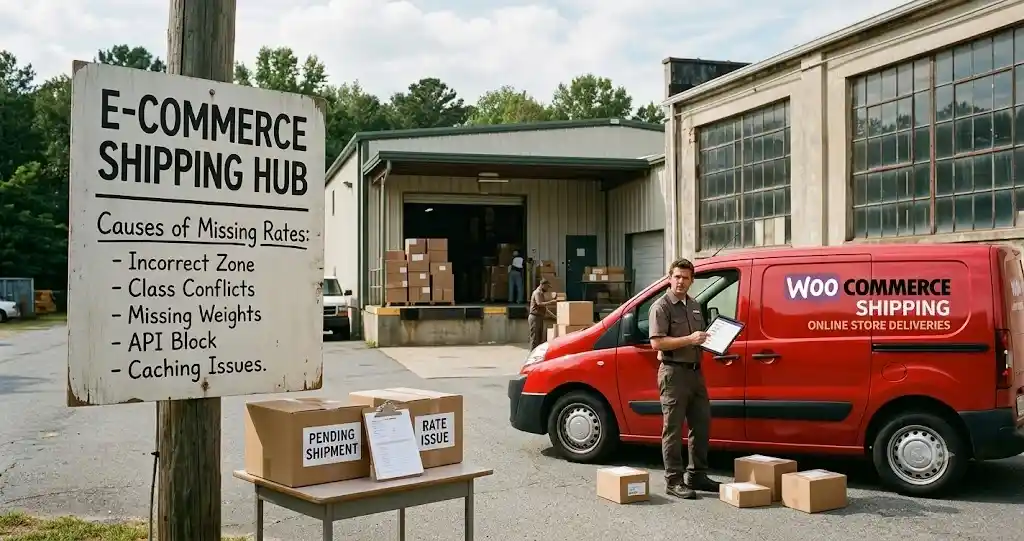
“WooCommerce shipping not showing” covers more than one problem wearing the same symptom. Sometimes it’s the exact message “no shipping options were found.” Sometimes it’s a blank space where rates should be, a missing calculator, free shipping that won’t appear, or local pickup that never shows up for anyone. I’ve grouped this by actual cause rather than by exact wording, because most of these symptoms share the same handful of root causes, and fixing the real one is faster than trying five random tutorials.
If you’d rather have someone else diagnose this on a live store, my team at Leelija handles WooCommerce and WordPress development work like this; there’s more on that at the end of this guide. For now, here’s how to work through it yourself.
Start here: turn on WooCommerce’s own debug mode
Before you touch any setting, do this first. WooCommerce ships with a built-in shipping debug mode that shows you, right on the cart page, exactly which shipping zone matched the address you tested and bypasses the shipping rate cache while it’s on. It turns a guessing game into a five-minute check.
- Go to WooCommerce > Settings > Shipping > Shipping settings (some setups show this under Shipping options).
- Check the box for Enable debug mode and save.
- Reload the cart or checkout page. A notice appears showing which zone was matched and, on core methods, why a rate did or didn’t apply.
- Turn it back off once you’re done. This notice is visible to real customers while it’s on.
WooCommerce’s own Troubleshooting Core Shipping document, last updated within the past month at the time of writing, walks through this same starting point before anything else. If debug mode shows the correct zone and a method that should be active, the problem usually isn’t the zone at all, it’s further down this list.
Classic checkout or block checkout? This changes where to look
This is the detail most other guides on this topic skip, and it matters more each year. Since WooCommerce 8.3 in November 2023, new stores get the block-based Cart and Checkout by default. Older stores may still run the classic, shortcode-based checkout. The two use different code paths to fetch shipping rates, so “shipping not showing” can have a different technical cause depending on which one you’re running.
- Classic checkout sends requests through ?wc-ajax=update_order_review when the cart or address changes.
- Block checkout is a React application that talks to the Store API, at endpoints under wc/store/v1, including the cart and checkout routes.
You can tell which one is failing by opening your browser’s developer tools (F12 or right-click > Inspect), going to the Network tab, and changing the shipping address or updating the cart. Look at the request WooCommerce sends: a wc-ajax request points you toward classic-checkout causes; a request to a wc/store path points you toward block-checkout causes, including Store API access being blocked. This distinction is explained well in FunnelKit’s WooCommerce checkout troubleshooting guide, written for checkout failures generally but directly useful here too.
| What the Network tab shows | What it usually means |
| Response body is -1 | A security nonce failed, often because the checkout page was served from cache |
| Status 403 or 406 | A firewall or security plugin is blocking the request, common with Store API calls |
| No shipping request fires at all | A JavaScript conflict is preventing the update from being triggered |
| Request succeeds but shows no methods | The zone or method configuration itself is the cause, not the transport layer |
Cause 1: No shipping zone matches the customer’s address
This is the single most common cause behind “no shipping options were found” and “WooCommerce shipping zone not matching.” WooCommerce’s own shipping zones documentation sets out three rules that explain almost every zone-matching complaint: zones are matched from top to bottom in the order you’ve arranged them, the first zone that matches wins, and each customer matches exactly one zone, never a combination of several.
That last rule is where “WooCommerce shipping zone order” problems come from. A broad zone (like “United States”) placed above a narrower one (like “California”) will catch California addresses first, so the narrower zone’s methods never get a chance to show. Drag your most specific zones to the top of the list, and leave the broadest catch-all zone, “Locations not covered by your other zones,” at the bottom.
- Go to WooCommerce > Settings > Shipping > Shipping zones.
- Check the order top to bottom: most specific zones first, broadest zones last.
- Edit each zone and confirm its regions actually include the postcode, state or country you’re testing with.
This is also where “WooCommerce postcode shipping not working” and “WooCommerce country shipping not working” usually resolve: a typo in a postcode range, a missing wildcard, or a country left out of a zone’s region list.
Cause 2: The zone has no shipping method, or the only one is disabled
A matched zone with zero enabled shipping methods produces exactly the same blank result as no zone matching at all. This is easy to miss because the zone itself looks correctly configured.
- Edit the matched zone and check the Shipping methods table inside it.
- Confirm at least one method shows as enabled (the toggle is a visible switch, not just present in the list).
- If you use Flat Rate, Free Shipping or Local Pickup, WooCommerce’s own setup guides for each cover the specific fields that need values: Flat Rate, Free Shipping, Local Pickup.
Cause 3: Free shipping’s own requirements aren’t met
“WooCommerce free shipping not showing” is almost always the Free Shipping method working exactly as configured, just not the way the store owner expected. WooCommerce’s own Free Shipping documentation lists five possible settings under Free shipping requires, and the method will only appear when its specific condition is met:
- No requirement: shows for every order in the zone.
- A valid free shipping coupon: only shows once a qualifying coupon is applied.
- A minimum order amount: only shows once the cart subtotal reaches that figure.
- A minimum order amount OR a coupon: either condition unlocks it.
- A minimum order amount AND a coupon: both conditions are required at the same time, the strictest option.
If a product has its own shipping class assigned, check that the class isn’t set to override or exclude free shipping; WooCommerce’s Troubleshooting Core Shipping guide flags this as a common cause of free shipping appearing to work for most products but not others.
Cause 4: Products are missing weight or dimensions, or a shipping class conflicts
Some shipping methods and third-party carrier plugins calculate rates using a product’s weight and dimensions. A product with those fields left blank can be treated as unshippable by methods that depend on that data, producing “WooCommerce shipping method unavailable” for that specific product while everything else in the store works fine.
- Open the product in the editor, go to the Shipping tab in Product data, and confirm weight and dimensions are filled in.
- Check whether a shipping class is assigned, and whether that class has its own rate configured in the shipping methods that use classes.
- If only certain products trigger the problem, this is the first place to look, not the zone settings.
Cause 5: The order genuinely doesn’t need shipping
Virtual and downloadable products don’t require a shipping address, so a cart containing only virtual items will never show shipping options, correctly. This becomes confusing on mixed carts: a single virtual item combined with a physical one should still trigger shipping for the physical item’s package. If it doesn’t, check each product’s Virtual and Downloadable checkboxes under Product data, since one mismarked product can be enough to suppress the shipping package for the whole cart.
Cause 6: Caching or a CDN is serving stale shipping data
Shipping rates are calculated per request. A page cache, object cache, or CDN rule that serves a cached copy of the cart or checkout page can show yesterday’s rates, no rates, or a stale error message, and this is one of the reasons WooCommerce’s debug mode explicitly bypasses the shipping rate cache while it’s switched on.
- Exclude the cart, checkout and my-account pages from any page-caching plugin (WP Rocket, LiteSpeed Cache, W3 Total Cache, and similar all have an exclusion setting for this).
- If you’re behind a CDN like Cloudflare, check that dynamic pages (cart/checkout) aren’t being cached at the edge; most CDNs auto-detect WooCommerce cookies, but a custom page rule can override that.
- Clear the cache after any shipping change and test again in a private/incognito window to rule out a locally cached response.
Cause 7: A plugin or theme is conflicting with shipping
Any plugin that touches checkout fields, address validation, or shipping rate calculation can interfere with WooCommerce’s own logic, and this is often the actual cause behind “WooCommerce shipping not working” when zones and methods both look correctly configured.
- Temporarily deactivate all plugins except WooCommerce, then test the cart and checkout.
- If the problem disappears, reactivate plugins one at a time, retesting after each, until it reappears.
- Switch to a default theme (Storefront or a current Twenty* theme) temporarily to rule out a theme template override, since some themes ship custom cart or checkout templates that can go stale after a WooCommerce update.
Do this on a staging copy of the site if you have one; deactivating plugins on a live store, even briefly, is best avoided during business hours.
Cause 8: A security plugin or firewall is blocking the Store API
This one is specific to block checkout. Because the Store API allows unauthenticated, cookie-based requests so the Cart and Checkout blocks can work, some firewalls, security plugins, and WAF rules (including certain Cloudflare or hosting-level configurations) can misidentify those requests as suspicious and block them, which shows up as a 403 or 406 response in the Network tab check described earlier.
- Check your security plugin’s activity log for blocked requests around the time you tested.
- Look specifically for rules affecting REST API or /wc/store/ paths, and add a targeted exception rather than disabling the firewall entirely.
- If you manage a WAF at the hosting or CDN level separately from a WordPress plugin, check there too; a permissive setting in the plugin doesn’t guarantee the same permissiveness upstream.
Cause 9: The shipping calculator setting, or a related display bug
“WooCommerce shipping calculator not showing” usually traces to the Enable the shipping calculator on the cart page checkbox under WooCommerce > Settings > Shipping > Shipping settings, alongside the related Hide shipping costs until an address is entered and Hide shipping rates when free shipping is available options, all documented on WooCommerce’s settings configuration page. Worth knowing: an open WooCommerce core issue (still unresolved as of this writing) documents a case where the cart page shows shipping options even with the calculator disabled, specifically when block-based checkout is combined with Local Pickup using at least one configured pickup location. If your build matches that combination and behaves the same way, this is a known issue to watch, not a mistake in your settings.
Also check WooCommerce > Settings > Advanced > Page setup to confirm the correct Cart and Checkout pages are still assigned; a page reassigned or deleted during a redesign can silently break shipping display even when every zone and method setting is correct.
A current known issue worth being aware of
As of this research, an open WooCommerce GitHub issue (filed in mid-September 2026) documents that both classic and block checkout can allow an order to complete for a non-virtual product even when no shipping methods are present at all, with no warning shown to the customer. Interestingly, the same report notes that if a Free Shipping method exists but is disabled, WooCommerce does warn the customer, so the missing warning specifically affects zones with zero methods added, not zones with disabled ones. If you’re auditing checkout behavior rather than just a single failed test, it’s worth manually testing a zone with no methods at all to see how your specific WooCommerce version handles it, since this is an active area of core development and the behavior may change.
A step-by-step diagnostic checklist
- 1. Turn on shipping debug mode and note which zone gets matched.
- 2. Confirm that zone has at least one enabled shipping method.
- 3. Check zone order: specific zones above broad ones.
- 4. For Free Shipping specifically, check the Free shipping requires setting against the cart total or coupon you’re testing with.
- 5. For a single misbehaving product, check its weight, dimensions and shipping class.
- 6. Open the browser Network tab and test again; note whether the request is wc-ajax or wc/store, and its response code.
- 7. Clear all caching (plugin, host-level, CDN) and retest in a private window.
- 8. Deactivate all plugins except WooCommerce and switch to a default theme; retest.
- 9. Check your security plugin and any hosting-level firewall for blocked REST/Store API requests.
- 10. Confirm the Cart and Checkout pages are still correctly assigned under WooCommerce > Settings > Advanced.
When it’s worth getting a developer involved
Most of the causes above are configuration, not code, and you can work through them with the checklist. A caching or plugin conflict that only appears under specific combinations, a Store API request being blocked by infrastructure you don’t directly control, or a checkout customization that’s fighting with a shipping plugin, those genuinely benefit from someone who does this daily. That’s the kind of WooCommerce and WordPress development work my team handles at Leelija, alongside broader site, app and SEO work; if you’d rather hand this off than keep testing combinations yourself, you can get in touch. For more WooCommerce and WordPress guides in the meantime, browse my WooCommerce category and WordPress category on this site.
Frequently asked questions
Most often because no shipping zone matches the address entered, or a matching zone exists but has no enabled shipping method. Turn on shipping debug mode first; it will show you which of the two is actually happening rather than making you guess.
Check whether you’re on block or classic checkout, since they fetch rates through different code paths, and a request that succeeds on the cart page can still fail at checkout if a firewall or plugin only intercepts one of the two. Also confirm the billing and shipping addresses match, if your store is set to ship only to the billing address under Shipping destination.
Check the Free shipping requires setting on the method. If it’s set to a minimum order amount, a coupon, or both, customers who don’t meet that specific condition will correctly not see it. A shipping class excluding free shipping on certain products can also cause this.
Yes, for some causes. Block checkout talks to the Store API rather than the older wc-ajax endpoints classic checkout uses, so firewall rules, caching behavior, and some plugin conflicts can affect one and not the other. The Network tab check described earlier tells you which one you’re dealing with.
Yes. Any plugin that runs during checkout, address validation, custom fields, page builders, other shipping plugins, can interfere with WooCommerce’s own shipping calculation. Deactivating everything except WooCommerce and reactivating one at a time is still the most reliable way to isolate this.