


WooCommerce admin is usually slow because a request is doing too much work or waiting for something: a database query, a plugin, an external service or available server capacity. Background jobs and reporting imports can add pressure. The right fix depends on which screen is slow and where its loading time goes.
A slow dashboard affects the people running your business. When checking an order or updating a product takes longer than it should, the delay repeats throughout the day.
My approach is to measure one specific task, identify its bottleneck and make a targeted change. This guide explains how to fix slow WooCommerce admin screens without treating every large database or pending action as something to delete.
How to speed up WooCommerce admin
Start with this sequence:
1. Identify the affected screen and reproduce the same task several times.
2. Check browser requests, WooCommerce Status and server logs.
3. Profile database queries, plugin activity and external requests.
4. Investigate overdue background jobs and ongoing imports.
5. Apply the relevant fix on staging and compare the same task again.
Take a current backup before database work, storage changes or conflict testing. Keep staging payments, emails and external integrations isolated from production.
Do not begin by installing several optimization plugins. First find out what needs optimizing.
First identify which part of the backend is slow
“WooCommerce backend slow” can mean a slow initial page, a report that never finishes or an editor that freezes after loading. These require different investigations.
| Symptom | Investigation to prioritize | Evidence to collect |
|---|---|---|
| Most wp-admin pages are slow | Server capacity and broadly loaded plugins | Request timings, CPU and PHP worker usage |
| Orders list or order search is slow | Order queries, storage and added columns | Query duration and responsible component |
| Products list or editor is slow | Product queries, variations and integrations | A repeatable product or search example |
| Analytics charts are slow | Report requests and import activity | Date range, request response and job progress |
| Admin becomes slow at certain times | Backups, feeds, imports and scheduled jobs | Timings matched to resource usage |
| Slowness began after an update | Changed code, migrations and compatibility | Versions, logs and before-and-after behavior |
Use this table to choose a starting point. It does not establish a diagnosis by itself.
For broader store maintenance, you can explore my WooCommerce guides.
1. Measure the slow task before changing settings
Choose a task you can repeat, such as opening Orders with the same filters, searching for one SKU or loading an Analytics report for the same date range.
Record the user role, browser, filters and approximate time. Repeat it three to five times and keep the middle result as a simple baseline. Use comparable server conditions and note whether a cache was warm or freshly cleared.
For example, if an Orders search is slow but the Settings page is responsive, I would investigate that search before changing the entire hosting setup. If every admin request stalls during a backup, I would examine resource contention first.
These are diagnostic examples, not performance results from a client store.
Separate server delay from a browser problem
Open the browser’s developer tools and inspect Network while repeating the task. Look at the main document and any Fetch/XHR requests that follow. A page can appear quickly while a slower background request holds up its content.
If requests finish promptly but clicking or scrolling remains unresponsive, investigate browser scripting and extensions. Test a clean browser profile with the same account. A public PageSpeed score does not diagnose an authenticated admin workflow.
The Chrome Network documentation explains request timing, responses and initiators.
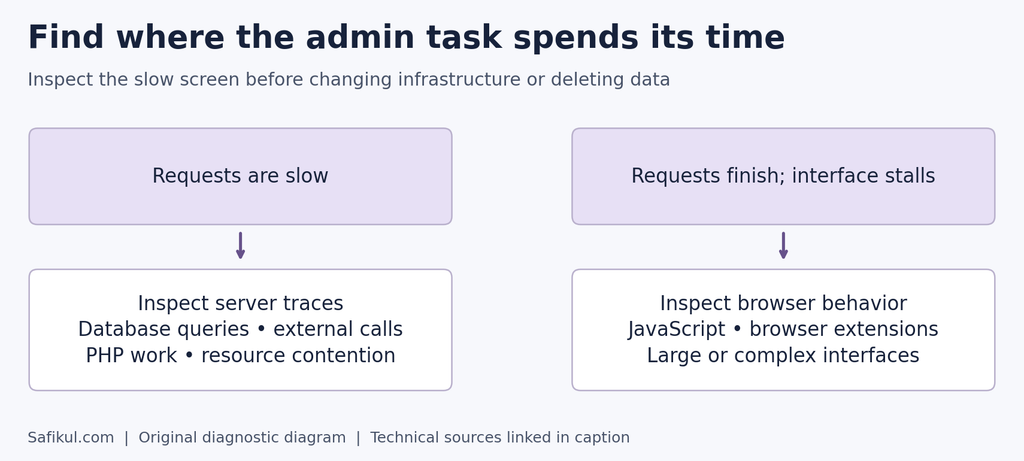
Figure 1. Separate request delays from browser-side delays before choosing a fix. Original diagram created for Safikul.com, informed by Chrome DevTools and Query Monitor documentation. This is an explanatory diagram, not a live performance recording.
2. Find slow queries and the component responsible
WooCommerce slow database queries deserve attention, but the total number of queries alone is not a useful verdict. A few expensive queries may matter more than many fast ones.
A developer can use Query Monitor’s database panels to inspect query duration, duplicate queries and the calling component. Profile the screen where the problem occurs rather than an unrelated homepage request.
Ask these questions:
- Which queries account for most of the database time?
- Does one plugin or custom function repeatedly request similar data?
- Does the delay appear only with a particular search, filter or sort?
- Is the database waiting on a lock or scanning more data than expected?
For deeper investigation, ask your host for a slow-query trace and execution-plan review. Treat additional indexes as a developer-led change based on a measured query, not a universal SQL snippet.
Diagnostic tools add overhead. Use them for a controlled investigation, then repeat the final measurements without unnecessary profiling enabled.
Check external services too
A shipping, tax, inventory or license integration may contact another server during an admin request. When a trace shows a long external call, investigate its purpose, timeout and frequency before blaming MySQL.
Query Monitor’s Timeline panel can show database activity, HTTP requests and errors in sequence. It helps distinguish time spent computing from time spent waiting.
3. Test plugins and custom admin features
The number of plugins installed is less informative than what those plugins do on the affected screen.
I would pay particular attention to custom order columns, product synchronization, reporting extensions and code that runs on every admin page. These are investigation priorities, not claims that a particular plugin category is inherently slow.
Follow WooCommerce’s plugin and theme conflict-testing guidance on staging. Record the current setup, test a supported default theme and temporarily remove nonessential plugins from the test configuration. Restore them individually and repeat the same task after each change.
Remember that hosting drop-ins and must-use plugins may still be active. A test with ordinary plugins deactivated does not necessarily remove every customization.
For list screens that provide Screen Options, try displaying fewer rows per page and compare the result. Hiding a column visually does not guarantee its plugin stops doing the underlying work; verify that with a trace.
4. Check HPOS when the Orders page is slow
High-Performance Order Storage, or HPOS, stores order information in dedicated WooCommerce tables. It is designed to improve order-data storage and access as stores grow.
If WooCommerce admin is slow with many orders, check WooCommerce > Settings > Advanced > Features to see which order storage is authoritative. Existing stores may still use legacy WordPress posts storage.
Follow the official HPOS migration guide: confirm extension compatibility, synchronize the data and validate the transition on staging before switching production. Keep relevant extensions active during migration as the guide instructs. Do not delete legacy order tables as an improvised cleanup step.
HPOS is focused on orders. It will not automatically fix a slow product editor, a browser error or a third-party API timeout.
My acceptance test would cover order search, editing, refunds, exports and integrations that read orders. A faster order list is useful only if the rest of the order workflow still behaves correctly.
5. Investigate slow Products pages separately
When WooCommerce admin is slow with many products, start with the specific operation: listing products, searching, saving one product or editing many variations.
Compare a simple product with the affected product. On staging, test without optional product-editor extensions and integration panels, then inspect the difference in requests and query time.
A product with many variations may expose work that a simple product does not. That comparison helps your developer narrow the investigation; it does not prove that the product must be simplified.
WooCommerce provides product lookup-table maintenance tools, documented in its System Tools guide. Use regeneration when there is evidence of a lookup-data problem. Rebuilding tables unnecessarily creates more work and may not address the slow query.
6. Review Action Scheduler without deleting the queue
Go to WooCommerce > Status > Scheduled Actions. The official scheduled-actions guide explains how to filter actions and inspect their logs.
Pending does not automatically mean broken. A pending action scheduled for tomorrow is different from one that was due yesterday and still has not run.
Inspect the hook, group, scheduled time and recent log entries. Look for repeated failures belonging to one integration and check whether overdue work is shrinking or growing.
| Queue observation | What it may mean | Sensible next step |
|---|---|---|
| Pending with a future date | Work is not due yet | Leave it scheduled |
| Overdue and increasing | Processing is falling behind | Check runner health and resource pressure |
| Repeated failures for one hook | One task or dependency is failing | Inspect logs and its owning extension |
| Work completes but new tasks arrive faster | Throughput cannot match incoming work | Review task generation and capacity |
A large queue can be a symptom of another fault. Deleting it may hide the evidence while leaving the cause in place.
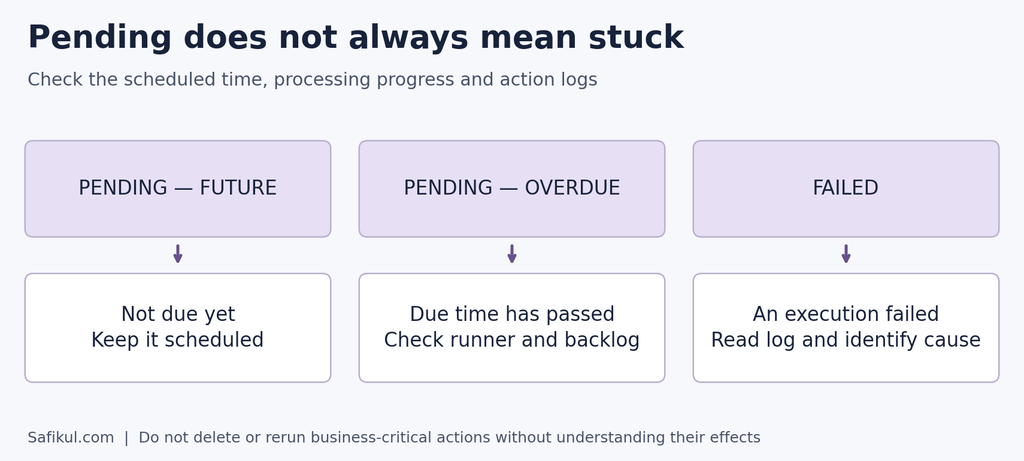
Figure 2. Scheduled time and failure history matter more than a pending count alone. Original diagram created for Safikul.com. Technical sources: Action Scheduler overview and WooCommerce scheduled actions.
Check how background work is triggered
Action Scheduler uses WP-Cron and asynchronous loopback requests in its normal processing. WordPress explains that WP-Cron is triggered by page loads rather than running continuously like a system scheduler.
Ask your host to verify cron execution and loopback requests. If a server-level cron job is appropriate, confirm it works before disabling the existing trigger.
For substantial backlogs, developer-managed WP-CLI processing may help. The Action Scheduler performance guide recommends CLI processing for higher throughput and warns that increasing concurrent batches can overload a server.
Do not bulk rerun failed payment-related actions without understanding their effects. Also avoid truncating Action Scheduler tables or cancelling all pending actions to make the dashboard look cleaner.
7. Review autoloaded options and database growth
WooCommerce database bloat is not simply “a database with many rows.” Business data grows naturally. The useful question is whether unnecessary data or inefficient access is adding measurable work.
Autoloaded options are settings WordPress loads together. Too much unnecessary autoloaded data can affect performance. The WordPress Options API reference explains why frequently needed settings and rarely used settings should be treated differently.
Have your developer identify the largest autoloaded options and the plugin or theme that owns them. Decide whether each is required, obsolete or incorrectly autoloaded before making a change.
Do not set every option to non-autoloaded or delete options because their names are unfamiliar.
Be careful with outdated autoload checks
An older SQL check that only looks for autoload = ‘yes’ can miss data on newer WordPress installations. The current WordPress autoload function includes additional values such as on, auto-on and auto.
Use version-aware tooling. A cleanup report based on an incomplete query can give you the wrong picture of WooCommerce autoloaded options.
For the rest of the database, review growth by table, retention requirements and the source creating the records. Fix excessive data generation before scheduling repeated cleanup.
8. Treat transients and sessions differently
Transients are temporary cached values. The WordPress Transients API explains that their storage may be backed by an external object cache, and that they may disappear before their maximum expiration time.
They are not automatically harmful. Deleting all transients repeatedly can force the application to rebuild cached results, creating additional work.
If expired data is accumulating, investigate cleanup and the component creating it. Use supported maintenance tools for a known purpose rather than running a broad delete query.
A large WooCommerce sessions table requires a separate check of active versus expired sessions and cleanup behavior. WooCommerce’s Clear Customer Sessions tool removes ongoing session data, including carts. That makes it unsuitable as a routine speed button on an active shop.
I would prioritize understanding why the table grows, then agree on a targeted maintenance plan. Preserving a customer’s active cart matters more than making a database size chart smaller.
9. Investigate slow Analytics and reports
WooCommerce Analytics slow to load and Analytics showing outdated figures are different problems. First determine whether a report request is delayed, an import is unfinished or the data is simply waiting for its next update.
The current Analytics documentation describes an Updates setting introduced in WooCommerce 10.5. Scheduled updates run every 12 hours with lower performance impact; immediate updates can add load on busy stores. Check whether your installed version exposes this setting and choose a freshness level the business actually needs.
For historical imports, use the documented import controls, monitor progress and consider smaller date ranges for large datasets. Resolve recorded import errors before retrying failed work.
For a slow report, compare a short date range with a much larger one and inspect the relevant browser request. For incorrect figures, investigate data status and the documented analytics-cache process. Do not repeatedly reset and re-import everything simply because a chart loads slowly.
10. Check hosting capacity and persistent object caching
If traces show requests waiting for capacity, ask your host for evidence from the same time window: CPU saturation, memory pressure, PHP worker utilization, database load and disk latency.
A higher PHP memory limit helps a request that genuinely exhausts its allocation. It does not create more physical memory or fix inefficient code.
Persistent object caching can reuse suitable cached data across requests, which may reduce repeated work. It differs from full-page caching. WordPress’s optimization guidance covers caching and infrastructure considerations.
Work with your host to choose and verify a compatible object-cache setup. Measure the affected admin screen before and after enabling it. Do not assume that installing a Redis integration means a persistent cache is connected and functioning.
Keep authenticated admin pages out of public full-page caches. A CDN serving storefront assets faster does not directly remove a slow admin database query.
I would consider a hosting upgrade when the evidence shows sustained resource limits after unnecessary work has been addressed. Ask for an explanation tied to your workload, not just a larger plan name.
What if WooCommerce admin became slow after an update?
Record the old and new versions of WordPress, WooCommerce, the theme and relevant extensions. Check logs, release notes, database update notices and migration or synchronization progress.
On staging, reproduce the same task and isolate the changed component. Avoid launching a large import, HPOS migration and plugin cleanup at the same time; overlapping changes make the result difficult to interpret.
A rollback needs a compatibility and data plan. Replacing plugin files does not necessarily reverse a database migration, and restoring yesterday’s production database can remove today’s orders. Ask the developer responsible for the update to define the appropriate recovery path.
How to confirm the admin is actually faster
Repeat the original task under comparable conditions and record the result. Then check that saving products, processing orders and background work still function.
My review would include:
- The same Orders and Products views, filters and user role.
- The same Analytics report and date range.
- A functioning order and product edit workflow.
- No new PHP errors or repeated job failures.
- Stable or improving overdue-job processing.
- A controlled checkout test after changes affecting shared store components.
Measure operational value too. As a hypothetical example, saving four seconds on a task repeated 150 times returns ten minutes of staff time per day. The numbers will differ for your store, but the principle helps connect WooCommerce admin performance to business efficiency.
When to ask for developer support
Send your developer the affected screen, reproduction steps, versions, timestamps, baseline timings and sanitized logs. Ask for the bottleneck, the proposed change and the test that will confirm improvement.
At Leelija Web Solutions, our services include website and software development. My preference for a performance project is a clear diagnosis and a measurable result. You can also find related maintenance advice in my WordPress guides.
Frequently asked questions
The storefront may benefit from page caching, while admin screens perform authenticated, dynamic work. Investigate the admin request itself instead of relying on public-page speed results.
HPOS improves the structure used for order data. It can help relevant order workflows, but it is not a universal solution for Products, Analytics, external requests or browser problems.
Not necessarily. Future-dated actions can be normal. Focus on overdue work, processing progress and repeated failures, then inspect the responsible task before changing the queue.
Investigate the failure and preserve useful logs first. Cleanup should follow the task’s purpose, retention needs and installed Action Scheduler version. Removing the record does not fix the failing callback.
Only if the cache state is related to the problem. Transients also prevent repeated work, so clearing them can temporarily increase load. Diagnose before purging.
Measure one repeatable task, identify the time-consuming request or component, apply a targeted fix and retest. That gives you evidence that the change improved the workflow without breaking store operations.