

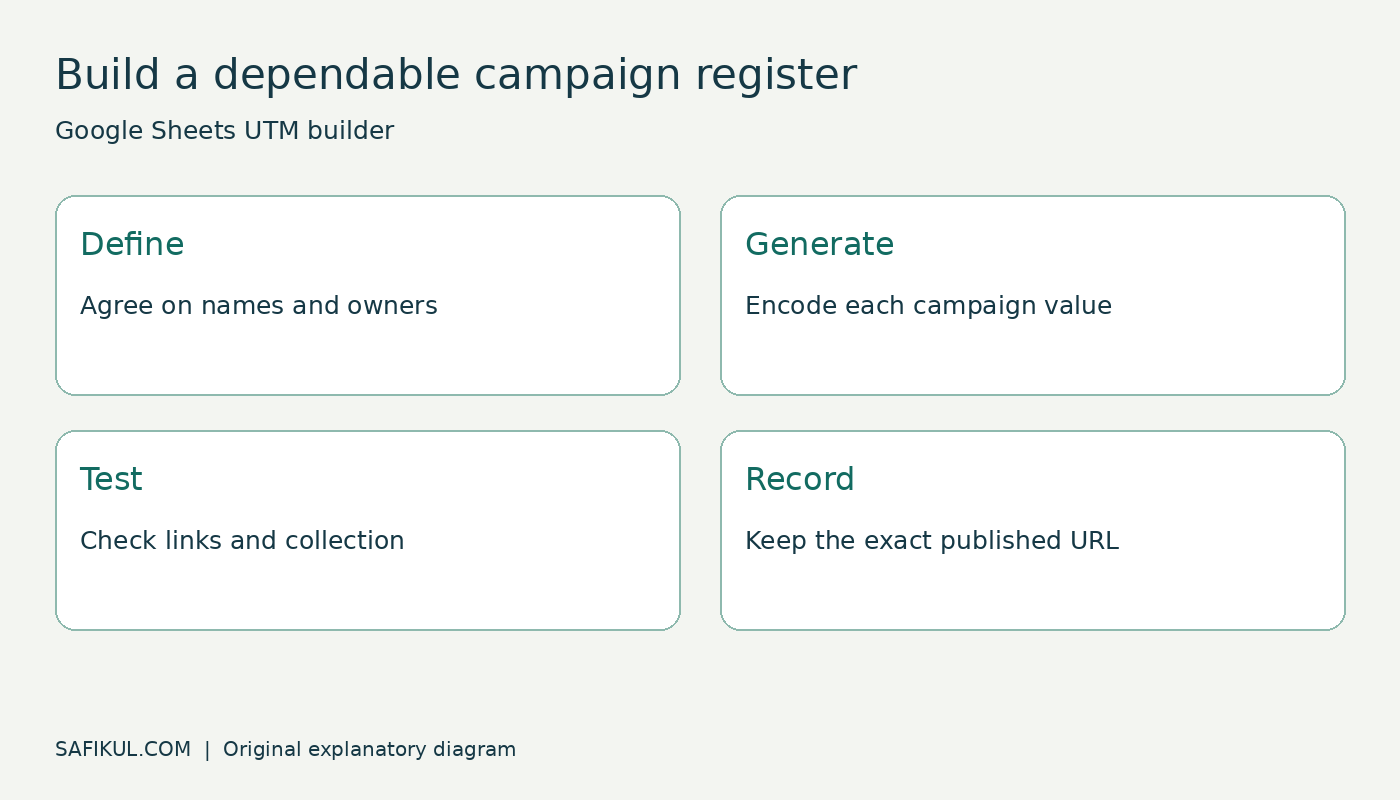
A UTM builder in Google Sheets lets a small team create campaign links from an agreed set of names and keep a record of what was published. The useful part is not just joining text together. It is preventing two people from naming the same campaign differently and checking that every generated link reaches the right destination.
My recommendation is to start with a small, transparent sheet: one row per placement, a few controlled input columns and a protected formula column. You do not need Apps Script for the version below. This tutorial uses fictional campaign details, not results from a campaign I ran.
If UTM tracking is new to you, read my UTM builder and GA4 guide first. Here we will focus on building the shared sheet.
Set up the campaign register
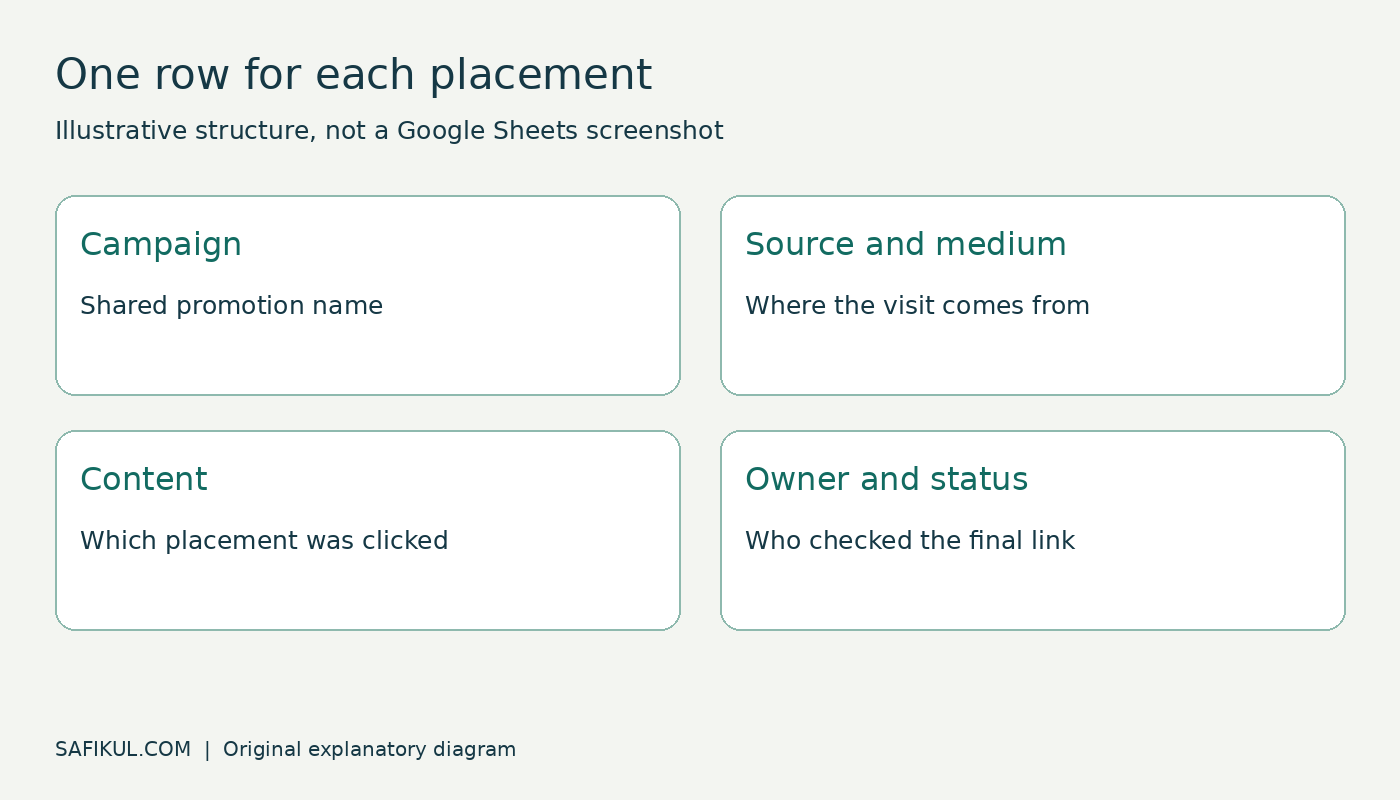
Create a blank Google Sheet and name the first tab Campaign links. Add these headings to row 1. Keep one row for each distinct placement, even when several placements share a landing page.
| Column | Heading | Example |
|---|---|---|
| A | Landing URL | https://example.com/workshop/ |
| B | Source | newsletter |
| C | Medium | |
| D | Campaign | november_workshop |
| E | Content | hero_button |
| F | Campaign ID | workshop_202611 |
| G | Source platform | email_platform |
| H | Generated URL | Formula output |
| I | Owner | Campaign manager |
| J | Status | Draft, tested or published |
The example source-platform value is a placeholder: enter the actual platform responsible for the campaign. Google recommends supplying all relevant campaign parameters, particularly source, medium, campaign, campaign ID and source platform. The official campaign URL documentation explains their meanings. Content is useful when comparing a main button with a text link.
Agree on names before adding formulas
Use one spelling for each source and a consistent naming style for campaign values. Lowercase with underscores is a practical team convention. Preserve the capitalization of the landing URL: some websites treat differently capitalized paths as different addresses.
Create a second tab called Naming rules. Record approved source and medium values and who can add new ones. For example, an organic Instagram placement could use instagram and social, while a newsletter uses newsletter and email. Choose labels according to your measurement plan, not because a particular word looks fashionable.
Google Sheets supports dropdowns from a range. Select the source input cells, open Data, then Data validation, and choose the approved list. Reject unapproved values when consistency matters. Keep the dropdown single-select: one URL should not contain several source names joined together.
Add a simple formula for clean landing URLs
For the first version, use landing URLs with no existing question mark or fragment. Paste this formula into H2, then fill it down. It requires A through D; E through G are added when supplied.
=IF(OR(A2="",B2="",C2="",D2=""),"",
 A2&"?utm_source="&ENCODEURL(B2)
 &"&utm_medium="&ENCODEURL(C2)
 &"&utm_campaign="&ENCODEURL(D2)
 &IF(E2="","","&utm_content="&ENCODEURL(E2))
 &IF(F2="","","&utm_id="&ENCODEURL(F2))
 &IF(G2="","","&utm_source_platform="&ENCODEURL(G2)))
Use straight quotation marks when pasting. Depending on the spreadsheet locale, function arguments may need semicolons instead of commas. Do not change the ampersands inside quoted URL text.
ENCODEURL prepares each value for a URL query string. For example, an ampersand in a campaign name must be encoded so it does not accidentally start another parameter. Encode values individually; encoding the entire finished URL would also encode the separators it needs.
With the example inputs, the result begins with the workshop landing URL and includes utm_source=newsletter, utm_medium=email and utm_campaign=november_workshop. Leave content empty when you do not need a placement comparison; the formula will omit that parameter.
Handle existing parameters and page fragments deliberately
The simple formula is intentionally limited. A URL such as /workshop/?language=en already has a query string. Adding another question mark breaks the intended structure. A fragment such as #register belongs after the query string, not before the UTMs.
For mixed destinations, add three helper columns: K for the URL before the fragment, L for the fragment, and M for the query separator. Use these formulas in row 2:
K2: =REGEXREPLACE(A2,"#.*$","")
L2: =IFERROR(REGEXEXTRACT(A2,"#.*$"),"")
M2: =IF(REGEXMATCH(K2,"[?&]$"),"",
 IF(REGEXMATCH(K2,"\?"),"&","?"))
In H2, replace A2&"?utm_source=" with K2&M2&"utm_source=". Append &L2 immediately before the final closing parenthesis of the outer IF. This preserves an existing non-UTM query and puts the fragment at the end.
Do not feed an already tagged URL into either version. Add a warning column using =REGEXMATCH(LOWER(K2),"[?&]utm_"). A TRUE result means the row needs review. Remove old campaign parameters only after checking why they are there; preserve unrelated product, language or referral parameters needed by the destination. These formulas do not validate whether the website itself accepts a parameter.
Test the sheet before the team uses it
Use a short acceptance checklist with expected outcomes. Formula output alone is not evidence that analytics collection works.
| Test input | Expected result |
|---|---|
| Missing source or campaign | Empty output instead of a partial link |
| Campaign name containing a space or ampersand | Value encoded without creating extra parameters |
| Existing ?language=en | Helper version adds an ampersand before UTMs |
| Destination ending in #register | Fragment remains after all query parameters |
| Existing utm_source | Warning marks the row for manual review |
| Redirect or email link wrapper | Final destination retains the intended campaign data |
Open the exact link your audience will receive, including any shortening or email wrapping. Check the page, the form and the final address. Use your normal analytics test procedure and consent settings to confirm collection. In GA4, inspect session acquisition dimensions after processing rather than treating a real-time page view as proof of correct attribution.
Keep published links stable
Add a publication date and a copied, value-only version of the final link to your register. Otherwise, changing an input later can silently change the formula output while the distributed link remains the old version. Preserve both the published URL and any replacement, with a note explaining the change.
Protect formula cells from accidental edits, limit edit access to the people maintaining the register and assign one owner for naming rules. A protected range reduces mistakes; it is not a place to store secrets. Never put names, email addresses, phone numbers or access tokens in campaign values.
Keep integrated ad-platform tracking intact. Google’s manual tagging and auto-tagging documentation explains how these methods interact. A shared spreadsheet should support that setup, not overwrite it without a reason.
Frequently asked questions
Does this sheet send data to GA4?
No. It builds links. Your website’s analytics implementation collects visits, subject to consent and other collection limits. The sheet is a campaign register, not an analytics connector.
Can I use it for internal website links?
Keep campaign tagging focused on incoming marketing activity. For navigation and on-page buttons, use appropriate click-event measurement so your campaign naming remains meaningful.
Why do campaign names appear as separate rows?
Check capitalization, spelling and hidden spaces. Decide the approved value before launch and use validation to prevent variants. Changing the spreadsheet does not rewrite historical analytics data.
When is a spreadsheet no longer enough?
Consider a dedicated process when approvals, many collaborators or campaign integrations make manual maintenance unreliable. Start by documenting the failure you need to solve. More software will not fix inconsistent definitions by itself.
Build one campaign, test it, and let the team reuse the agreed pattern. Once tracking is dependable, focus on the business outcome: if visits arrive without enquiries, use my traffic but no leads checklist to investigate the next step.