

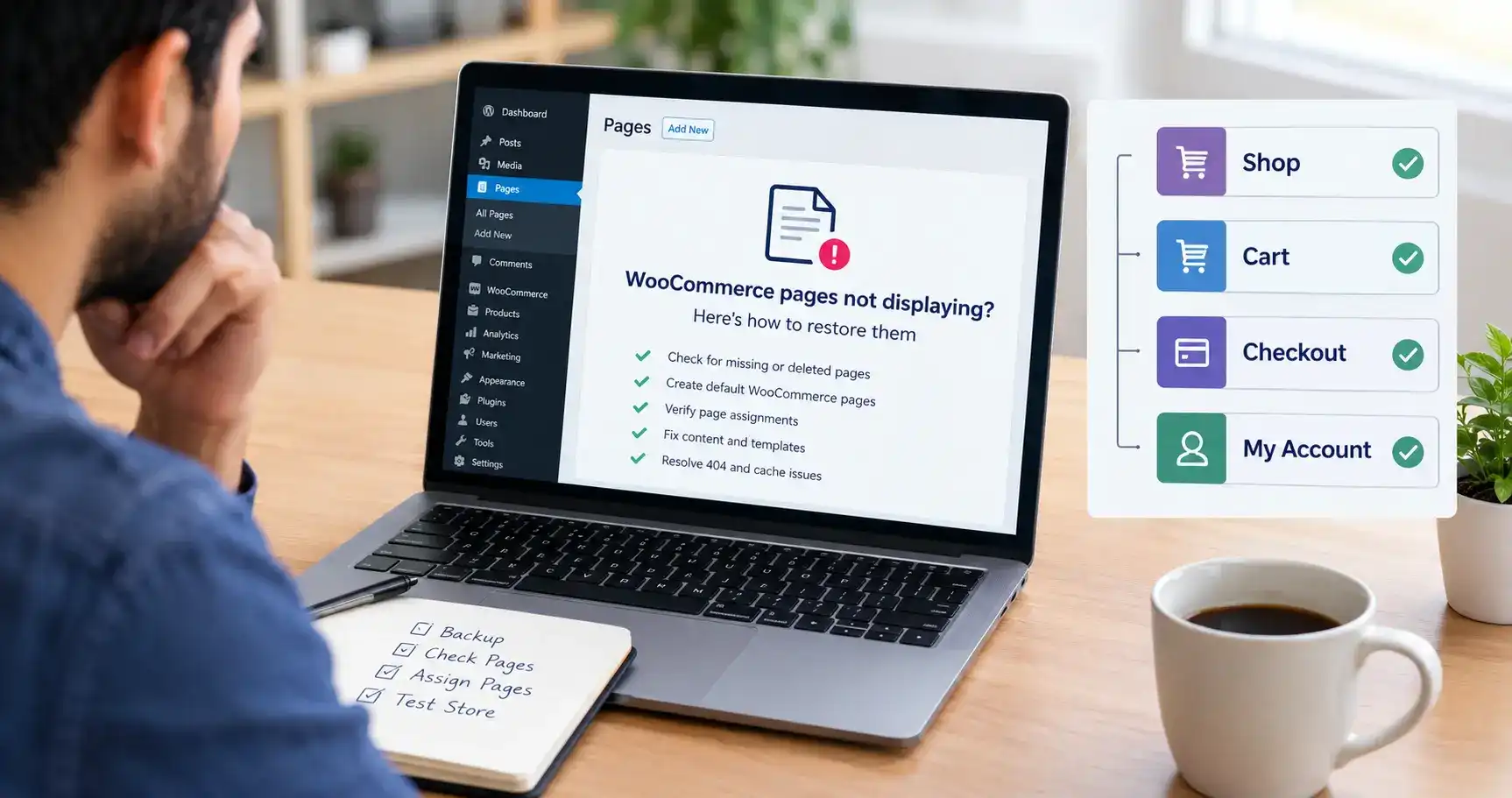
When WooCommerce pages stop displaying, the first question is simple: has the page disappeared, or does it still exist but fail to work?
That distinction matters. Recreating Checkout will not repair a plugin conflict. Adding a product grid will not fix an incorrect Shop page assignment. And rebuilding a page that is sitting in the Trash creates extra work you could avoid.
My approach is to protect the existing store, identify the broken part of the customer journey and make the smallest change that solves it. This guide follows that order.
Quick answer: how do you restore missing WooCommerce pages?
Check Pages > All Pages, including Trash. Restore the original pages where possible. If default pages are genuinely missing, go to WooCommerce > Status > Tools and use Create default WooCommerce pages. Then verify the Shop assignment under Products settings and the Cart, Checkout and My Account assignments under Advanced settings. If pages already exist, investigate their content, templates and loading errors instead.
WooCommerce documents these core pages in its official page setup guide.
WooCommerce pages not displaying: find your symptom first
Before changing settings, open the affected URL in a private browser window. Compare it with what you see while logged in as an administrator.
| What you see | What to investigate | Start here |
|---|---|---|
| A page is absent from All Pages | Deleted or uncreated page | Check Trash, then create missing defaults |
| The page exists but returns 404 | Wrong URL, assignment or rewrite rules | Verify its permalink and page assignment |
| Header and footer appear, but content is missing | Page content or template | Inspect the assigned page and its layout |
| Shop loads without products | Product visibility, stock or catalog template | Check one known product and the product listing |
| Administrators can see the store, visitors cannot | Coming soon mode or access restrictions | Check Site visibility and membership rules |
| Checkout opens but keeps loading | Script, request or extension failure | Investigate the loading error |
Treat this table as a starting point, not a diagnosis by itself. Record the exact URL and what happens when you open it. “Checkout redirects to Cart” is much more useful than “WooCommerce is broken.”
Before you change WooCommerce page setup
Take a current backup and record the existing page assignments and URLs. For changes involving themes, plugins or templates, use a staging copy of the store.
I also recommend writing down when the problem started. Did someone delete a page, migrate the website, change the theme or update an extension? That timeline helps you choose a useful first test.
Keep the original URLs wherever practical. Replacing a page with a new address can leave navigation menus, promotional links and customer bookmarks pointing to the old one.
Do not restore an old database over a live store just to recover page content. Orders received after that backup could be lost. Ask your developer or hosting provider to recover the specific content you need.
1. Check whether the WooCommerce pages are actually missing
In WordPress, open Pages > All Pages and look for your Shop, Cart, Checkout and My Account pages. They may have different names if you renamed them or translated the store.
Check drafts, private pages and Trash as well as published pages. A page can exist in the dashboard without being available to visitors.
If you find the original page in Trash, restore it. Open it, review the content and confirm its publication status before testing its URL. This is usually a better starting point than creating a second page with a similar title.
If the page remains published but someone removed its content, check WordPress revisions. An earlier revision may let you recover the layout or text without rebuilding it.
At this stage, separate missing WooCommerce pages from pages that still exist but show the wrong output. Only the first situation calls for recreating the page itself.
2. Create default WooCommerce pages when they are missing
WooCommerce includes a recovery tool for default pages:
1. Open your WordPress dashboard.
2. Go to WooCommerce > Status > Tools.
3. Find Create default WooCommerce pages.
4. Select Create pages.
5. Return to Pages > All Pages and inspect the result.
According to the WooCommerce system tools documentation, this tool generates missing default pages without overwriting existing ones.
That makes it useful when you find WooCommerce cart and checkout pages missing after deletion or incomplete setup. It is not a replacement for a backup of a custom checkout design.
After running the tool, verify assignments rather than assuming the customer journey is fixed. If an existing page is blank because its content or template is broken, repeatedly clicking Create pages is unlikely to help.
Use this specific tool. Other tools on the same screen can clear customer sessions or delete data and serve different purposes.
3. Verify WooCommerce page assignment
Creating a page and telling WooCommerce to use it are separate tasks. A page called “Checkout” is not enough if WooCommerce points to a different page.
Use these settings:
| Page | Assignment location | What to select |
|---|---|---|
| Shop | WooCommerce > Settings > Products > General | Your published catalog page |
| Cart | WooCommerce > Settings > Advanced > Page setup | Your published Cart page |
| Checkout | WooCommerce > Settings > Advanced > Page setup | Your published Checkout page |
| My Account | WooCommerce > Settings > Advanced > Page setup | Your published account page |
Save the changes. Keep Cart, Checkout and My Account assigned to separate pages. Check the selected pages carefully if duplicate titles make the dropdown confusing.
The official Advanced settings guide explains the transaction and account assignments. The Products settings guide covers the Shop selection.
Now open each selected page through its actual permalink. If that works but your navigation menu still fails, update the menu link to the correct destination.
4. Restore the content inside Cart, Checkout and My Account
An assigned page can still be empty. Open it in the editor and check that it contains the appropriate WooCommerce functionality.
Use Cart and Checkout blocks for a block-based setup
For a store using WooCommerce blocks, add the Cart block to the Cart page and the Checkout block to the Checkout page. Publish or update each page, then verify its assignment.
Check payment and checkout extensions for compatibility before changing an established setup. A custom extension designed for classic checkout may require a different integration for Checkout blocks.
If you need to return to classic functionality, WooCommerce documents the Classic Shortcode transformation in its Cart and Checkout customization guide. Follow its guidance for both pages and test the result on staging.
Avoid leaving a block and its equivalent classic shortcode together on the same page. Choose one functioning implementation.
Use the correct shortcodes for a classic setup
For classic pages, add a Shortcode block containing the relevant code:
Cart:
[woocommerce_cart]
Checkout:
[woocommerce_checkout]
My Account:
[woocommerce_my_account]
Keep each shortcode on its corresponding page. Use a Shortcode block rather than a Code block, which displays code as text.
The official page shortcode reference documents these options. Cart and Checkout blocks are the default on new WooCommerce installations from version 8.3 onward, so shortcodes are not the only valid setup.
There is no equivalent requirement to place a cart-style shortcode into the Shop page. Its catalog display works differently.
5. Fix 404 errors without changing your URL structure
If the correct page is published and assigned but its URL returns a 404 error:
1. Open Settings > Permalinks.
2. Leave the existing permalink structure unchanged.
3. Click Save Changes.
4. Reopen the affected URL in a private window.
This refreshes WordPress rewrite rules. WooCommerce includes it in its pages not displaying troubleshooting guide.
If only a menu link fails, compare that link with the published page URL before changing anything else. A migration or renamed slug may have left a stale destination.
Account sections such as Orders and checkout destinations such as Order received use endpoints. They are not normally separate WordPress pages you should recreate. If the main page works but a section fails, check endpoint settings for conflicts and then investigate routing with your host or developer.
6. Fix a WooCommerce shop page not showing products
A WooCommerce shop page not displaying products needs a different investigation from a deleted Cart page.
First, remember that the Shop page acts as a product archive. An empty Shop editor does not automatically mean the storefront is broken; the catalog comes from WooCommerce and the theme’s template.
Check one product before changing the entire catalog
Open Products > All Products and inspect a product that should appear:
- Confirm it is published and publicly accessible.
- Check Catalog visibility. Shop and search or Shop only allows it to appear in the shop; Search only and Hidden do not.
- Check its stock status and any relevant variations.
These controls are explained in the WooCommerce product editor documentation.
Next, review the option to hide out-of-stock products under WooCommerce > Settings > Products > Inventory. If all relevant products are out of stock and hidden, recreating the Shop page will not bring them back.
Inspect the catalog template and filters
For block themes, look under Appearance > Editor > Templates and locate the relevant WooCommerce Product Catalog template. Review the product listing block and any filters restricting the products displayed.
For a classic theme or page builder, inspect its shop archive layout and display conditions instead. The controls vary by theme and builder.
WooCommerce’s store template documentation explains how templates control these views. Make experimental template changes on staging, especially when the same template affects multiple catalog pages.
7. Check why Cart, Checkout, or My Account appears empty
WooCommerce cart page not showing
Add a purchasable product to the cart before evaluating the page. An empty-cart message is different from a blank screen.
If adding a product does not persist between pages, record the steps and investigate session handling and caching. Rebuilding the page does not address every cart-state problem.
WooCommerce checkout page not showing
Test Checkout with a product already in the cart. An empty cart can send you back through the cart flow rather than presenting a usable checkout.
If the form appears but shipping, payment options or order submission fail, the page itself is loading. Investigate the failing checkout component. For a persistent spinner, WooCommerce has a separate checkout loading troubleshooting guide.
WooCommerce My Account page not showing
Check the assigned page and its account shortcode. Test while logged out and with a customer account.
A login form for a logged-out visitor is expected. Registration is a separate setting, so the absence of a registration form does not by itself mean My Account is broken.
I would test each state deliberately. Looking only at the administrator’s view can hide the problem a customer experiences.
8. Check store visibility and caching
The store works for you but not for visitors
Open WooCommerce > Settings > Site visibility. If Coming soon is enabled, visitors may see a holding page while authorized users can preview the store.
Change it to Live only when you intend to launch publicly. See the WooCommerce Coming soon guide for the available visibility options.
Also review any maintenance, membership or private-store plugin. If access restrictions are intentional, preserve them and correct only the rule that is causing the problem.
Clear stale pages and check cache exclusions
After a relevant change, clear the affected cache layers: your caching plugin, hosting cache and CDN, where applicable. Retest in a private browser window.
Cart, Checkout and My Account display customer-specific information. Confirm that your full-page caching configuration excludes them, including their actual URLs if you use custom slugs. WooCommerce provides official caching guidance.
You do not need to permanently disable all caching across the store. The goal is to keep customer-specific pages dynamic while retaining useful performance improvements elsewhere.
9. Investigate blank pages and plugin conflicts
If WooCommerce pages are blank despite correct assignments and content, check when the failure started and whether it affects other parts of WordPress.
Use a staging site for conflict testing:
1. Reproduce the exact problem before making changes.
2. Switch temporarily to a suitable default theme or Storefront.
3. Disable plugins other than WooCommerce and anything essential to reproduce the issue.
4. Test again.
5. Re-enable plugins one at a time until the failure returns.
Follow the official WooCommerce conflict-testing process. This gives you a specific theme or extension to investigate instead of a list of guesses.
For errors, check WooCommerce > Status > Logs and ask your host about PHP error logs. Match the timestamp to your failed request. The WooCommerce logging documentation explains the logging interface.
Share relevant errors with the developer or support team after removing customer information and secrets. Avoid installing additional “repair” plugins before you understand what is failing.
Verify the whole customer journey after the fix
A page opening successfully is only the first check. Before calling the problem solved, walk through the store as a customer:
- Open Shop from the navigation menu and select a visible product.
- Add it to Cart and change its quantity.
- Continue to Checkout and confirm that the expected fields and payment options load.
- On staging, complete an order using your payment provider’s documented test mode.
- Check the order confirmation and customer account experience.
- Repeat the relevant checks on mobile and in a logged-out browser session.
Keep staging payments and customer emails isolated from live activity. If the order works but its email does not, use my guide to WordPress transactional email problems for that separate issue.
Record the fix and the test result. A short maintenance note makes a recurring problem much easier to resolve.
My advice: restore the missing part, then test the sale
When dealing with WooCommerce pages not displaying, I would start with three questions: does the page exist, is WooCommerce using it, and does it contain or render the right functionality?
Those checks keep the work focused. From there, follow the relevant branch for products, visibility, caching or errors instead of rebuilding the store around an unconfirmed cause.
For more practical maintenance advice, explore my WordPress guides. If the issue involves a custom theme or software integration, my team at Leelija Web Solutions can help assess the development work needed.
Frequently asked questions
Start with the existing pages and their assignments. Restore deleted pages from Trash where possible. Use the default-page creation tool for pages that are genuinely missing. Reinstalling WooCommerce is not the first step for a page configuration problem.
Default-page creation is not design recovery. To recover a customized layout, look for the original page, a revision, saved builder template or an appropriate backup. Preserve working pages while recovering the missing content.
Compare the migrated store with the original configuration. Check page publication, assignments, navigation URLs and rewrite rules. Then investigate caches or migration-related errors. The timing provides a clue, but it does not identify the cause on its own.
Yes. Create the necessary WordPress pages, add the appropriate block or shortcode for each functional page, publish them and assign them in WooCommerce settings. The Shop page uses the catalog template rather than a Cart or Checkout shortcode.
Usually, you can begin with WordPress page recovery and WooCommerce’s built-in tools. A separate plugin is not required simply to create default pages. If an extension causes the failure, address that extension’s compatibility or configuration.