

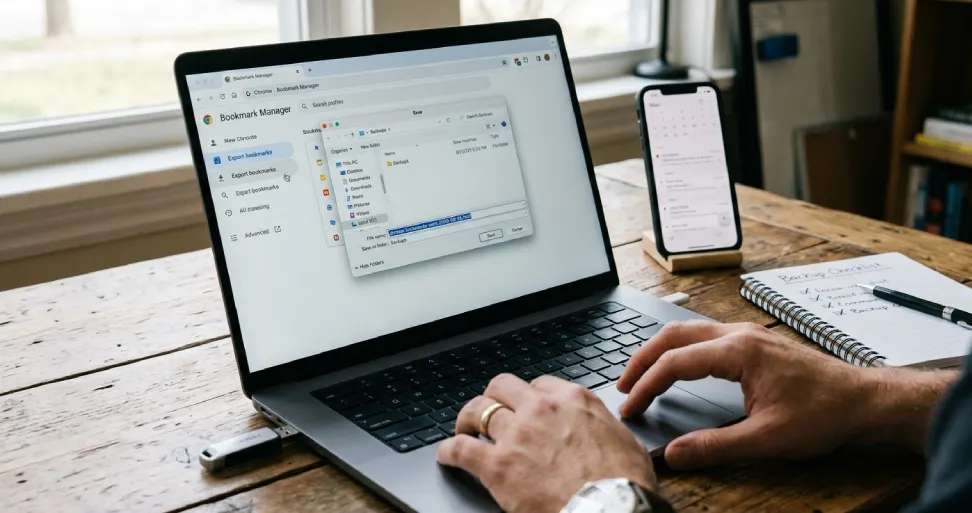
To export bookmarks from Chrome on a computer, open the three-dot menu, choose Bookmarks and lists, then Bookmark Manager. Open the manager’s own three-dot menu, select Export bookmarks, and save the HTML file.
For a blogger or business owner, bookmarks can hold months of useful research, supplier websites and everyday work tools. Before changing laptops or cleaning up your browser, I recommend saving a copy you can actually check.
This guide explains the desktop process, the options for mobile bookmarks, and how to move your saved links into another browser.
How to export Chrome bookmarks on a computer
These steps follow Google’s official bookmark export instructions.
1. Open Chrome on your computer.
2. Click the browser’s three-dot menu at the top right.
3. Choose Bookmarks and lists, then Bookmark Manager.
4. Click the three-dot menu inside Bookmark Manager.
5. Choose Export bookmarks.
6. Select a folder, give the file a recognizable name, and save it with its .html extension.
The important distinction is step four: use the menu inside the manager, not the browser menu you opened first.
For the filename, I suggest something like chrome-bookmarks-work-2026-09-26.html. Replace the date with your actual export date. “Work” or “personal” makes the backup easier to identify later.
Windows and Mac shortcuts
You can reach Bookmark Manager faster with these shortcuts from Google’s Chrome keyboard reference.
| Computer | Bookmark Manager shortcut | What to do next |
|---|---|---|
| Windows or Linux | Ctrl + Shift + O | Use the manager’s export option |
| Mac | Command + Option + B | Use the manager’s export option |
| Chromebook | Use the menu route above | Save the file somewhere easy to locate |
On a Mac, Command + Shift + B shows or hides the bookmarks bar. It does not open Bookmark Manager.
Check your Chrome profile before exporting
If the exported file seems incomplete, check which profile you used.
Chrome profiles keep information such as bookmarks and browsing history separate. Your work links may belong to a different profile from your personal links. Google explains this separation in its guide to Chrome profiles.
Click the profile icon, switch to the profile you need, and check that its expected folders appear. Export each relevant profile separately.
My practical suggestion is to write down the profiles you use before starting a laptop migration. Tick each one off only after its backup has been checked. That small habit prevents confusion when several files have similar names.
What does a Chrome bookmarks HTML file contain
The export contains saved link information and bookmark folders. It is not a complete backup of your browser, and it does not save the contents of every bookmarked webpage for offline reading.
The Chromium bookmark export implementation writes bookmark titles, URLs and folder information. The export covers the profile’s bookmark collections rather than just a folder you happen to have selected.
This matters when sharing bookmarks. Selecting a client folder first does not mean the resulting export contains only that client’s links. Inspect the file before sending it to anyone.
Chrome does not offer a built-in way to export a single folder on its own; the export always covers the whole bookmarks bar and everything nested inside it. If you only want to hand over one folder, the practical workaround is to create a new temporary folder, drag copies of just the bookmarks you want to share into it, export as usual, and then delete the temporary folder afterward. Check the resulting file before sending it, since it is easy to leave something unintended inside that folder.
For example, a marketing consultant might have separate folders for client research, invoicing and personal reading. A backup intended for personal safekeeping can contain all three. A file intended for a colleague deserves a different review.
Saved passwords, extensions and browsing history need their own migration arrangements. Do not erase your old device because a bookmark export succeeded.
How to check your bookmark backup before relying on it
I recommend a short verification routine immediately after exporting.
1. Find the file in the folder you selected. Check its name and modification date.
2. Open your own exported HTML file in a browser to inspect its links.
3. Look for several recognizable folder names and important bookmarks.
4. Check an older bookmark, a recently added bookmark and a link inside a nested folder.
5. Keep a second copy somewhere separate from the computer you may replace or reset.
These sample checks will not prove that every bookmark is present, but they can reveal an empty export or the wrong profile quickly. For a large collection, compare the main folders more thoroughly.
For extra confidence before a device reset, import the file into a separate local test profile that is not connected to your Google Account. Inspect the imported folders there. Keep your everyday profile untouched while testing.
Remember that a working bookmark and a working website are different things. An old URL may now redirect or show an error even when the export captured it correctly.
How to export Google Chrome bookmarks from Android or iPhone
Google documents the HTML export process for computers. For bookmarks on your phone, the practical route is to make the required bookmarks available in desktop Chrome first.
Google’s instructions for Android bookmarks and iPhone and iPad bookmarks explain how to find your saved links. Check the folders on your phone before beginning.
Then use this workflow:
1. Check which Google Account Chrome uses on your phone.
2. Make sure the bookmarks you need are saved to that account, rather than remaining only on the device.
3. Sign in to Chrome on your own computer with the same account.
4. Confirm that the phone’s expected bookmarks are visible on the computer.
5. Follow the desktop export steps earlier in this guide.
Google’s cross-device Chrome guidance distinguishes information saved to your account from information stored only on a device. Older tutorials often call the whole process “turn on sync,” but the labels you see can vary. Check bookmark saving specifically.
Do not assume the transfer worked simply because the account email matches. Look for actual bookmarks before creating the backup.
Can you use Google Takeout without a computer?
Google Takeout provides another route for downloading Chrome data already stored in your Google Account. Google lists bookmarks among the data covered by its Chrome data export guidance.
To request an archive, select Chrome in Takeout and deselect products you do not need. If a data-selection option is available, check that bookmarks are included. Continue to the next step, choose the delivery and archive options, and create the export.
Follow Google’s data download instructions when the archive is ready. Extract it and inspect the included files before deciding how to import them.
Takeout is an account-data export. It cannot retrieve bookmarks that exist only on a phone and were never saved to that account. For a straightforward browser-to-browser transfer, I would use the desktop HTML export when a computer is available.
How to import Chrome bookmarks into another browser
Keep the original export file unchanged while transferring your links. If the destination browser already contains important bookmarks, back those up too.
Import into Chrome
On the destination computer, open Chrome’s menu and choose Bookmarks and lists, then Import bookmarks and settings. Use the HTML file option, select your exported file and complete the import.
Afterward, inspect the folders before reorganizing them. Avoid repeatedly importing the same file while trying to locate a missing link.
Import into Microsoft Edge
Open Edge settings and find Import browser data under Profiles. Under the other import options, choose Favorites or bookmarks HTML file, then select your export.
Microsoft calls bookmarks “favorites.” Its official Edge import guide explains the file-based process and where imported favorites appear.
Import into Firefox
Open Firefox’s menu, choose Bookmarks, then Manage bookmarks. In the Library window, open Import and Backup and choose the HTML import option. Select your file.
According to Mozilla’s bookmark import guide, HTML imports add bookmarks to the existing collection and can create duplicates. Check the result before running another import.
Bookmark export versus account syncing
These methods serve different purposes.
| Method | Useful for | What to remember |
|---|---|---|
| HTML export | A dated backup or browser transfer | The saved file does not update when your bookmarks change |
| Saving bookmarks to your Google Account | Access across your Chrome devices | Confirm the required bookmarks are actually saved to the account |
| Google Takeout | Downloading account-stored Chrome data | It does not cover bookmarks stored only on a device |
My recommendation is to use account access for everyday convenience and dated exports before important changes. Decide your backup frequency around how often your collection changes, rather than following an arbitrary daily schedule.
For a blogger collecting sources for new articles, exporting after a substantial research project may be sensible. For someone with a small, stable set of links, exporting before a computer migration may be enough.
Common Chrome bookmark export problems
You cannot find the export option
Return to Bookmark Manager and check its own menu. A menu beside an individual bookmark is also different from the manager’s main menu.
If your interface still differs, compare it with Google’s current instructions linked above. On a work-managed computer, ask your administrator about restrictions instead of changing organizational settings.
The exported file appears to be missing
Check the folder you chose in the save dialog. Search your computer for the filename you entered, or for recently modified .html files. Do not assume every export goes into Downloads.
If necessary, export again with a distinctive name into a folder you can easily find. Keep the earlier file until you understand which copy is correct.
Some bookmarks are missing
Start with the original browser: can you find those links there? Check other profiles, folders and the phone where you first saved them. Then compare that collection with the export.
A backup cannot include a link that was never present in the collection being exported. Resolve that mismatch before repeating the process.
You want to share only a few links
For a small selection, copying the intended URLs into a document is often easier than sharing a whole browser backup. Give each link a useful label and check the destinations before sending it.
For everyday business access, organize links by purpose. A bookmark labelled “Business email login,” for example, is easier to recognize than a vague page title. If you use Bluehost, my Bluehost webmail guide covers that related task.
Make the backup useful before you need it
Knowing how to export Chrome bookmarks is useful. Knowing which profile you exported, where you saved it and whether the file contains your important links is what makes the backup dependable.
Before switching computers, check the export, keep another copy and confirm the import on the destination device. For more help with everyday tools, explore my practical app guides.
Frequently asked questions
No. Exporting creates a separate file; it does not move your bookmarks out of the browser.
No extension is needed for the built-in desktop export process.
Yes. Locally stored desktop bookmarks can be exported without saving them to a Google Account first. Account saving matters when you want to bring account-stored bookmarks across devices.
Yes. Choose the USB drive when saving, or copy the completed file there afterward. Open that copy to confirm it transferred successfully before disconnecting the drive.
A bookmark export is not an open-tab backup. Save any tabs you want to keep as bookmarks before exporting. Google lists Ctrl + Shift + D on Windows and Command + Shift + D on Mac for bookmarking all open tabs in a new folder.
No. Create a new export when you want a newer snapshot. Keep the date in the filename so you can distinguish versions.