

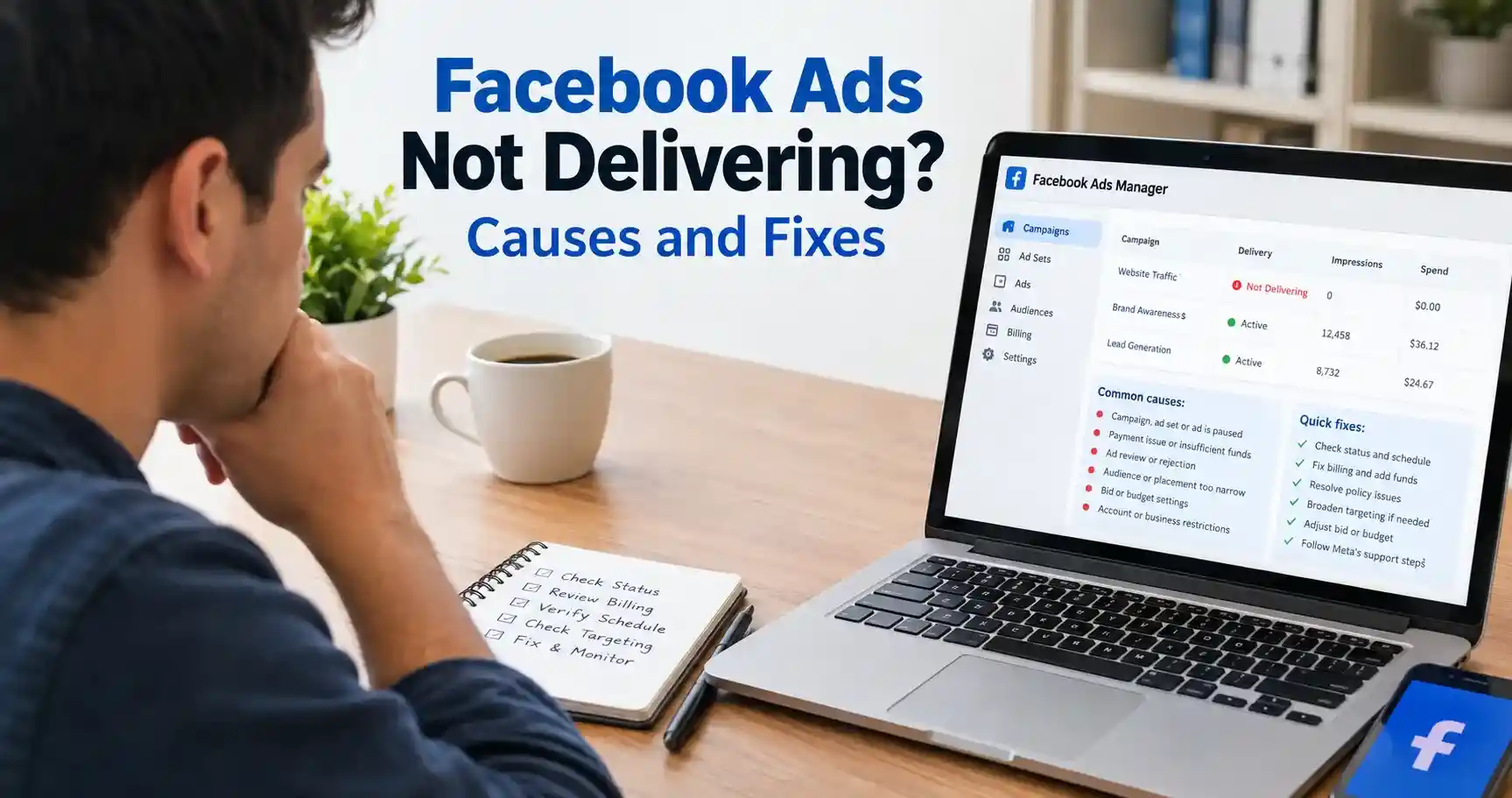
Facebook ads not delivering usually means a campaign is blocked by its status, review, billing, schedule or account restrictions, or that its settings leave too few delivery opportunities. Start with the Delivery column at the campaign, ad set and ad levels. Then check impressions and spend before changing budgets or targeting.
An active switch alone does not tell you whether an ad is reaching people. You need to identify where delivery stops and what the account is actually reporting.
My recommendation is to work through the simplest checks first. A payment problem needs a billing fix. A scheduled ad needs the correct start time. An ad that spends money but generates no enquiries needs a different investigation.
This guide gives you a practical order for finding the cause, choosing a correction and checking whether it worked. Meta changes menus and available settings, so follow the notices in your own account when the labels differ.
First, establish whether delivery has actually stopped
Open Meta Ads Manager, select the correct ad account and set a date range that includes the campaign’s scheduled running period. Remove filters that could hide relevant ads.
Check Amount spent, Impressions, Reach and Results together. These metrics answer different questions.
| What you see | What it suggests | Where to start |
|---|---|---|
| Zero impressions and zero spend | No recorded delivery during the selected period | Status, review, billing and schedule |
| Some impressions but very little spend | Underdelivery or uneven allocation | Budget, bid controls, audience and placements |
| Spend and impressions but no leads or sales | Delivery is happening | Offer, destination, conversion tracking and lead quality |
| One ad is quiet while others spend | A local ad issue or budget allocation | Ad status and the surrounding ad set |
| Several campaigns stop together | A shared account issue is possible | Billing, restrictions, account limits and platform status |
Allow for reporting delays, especially just after publishing. Also compare the ad account time zone with your local time. A report for “Today” may cover a different period than you expect.
For more background on campaign structure, visit my Facebook advertising guides.
Read the delivery status at all three levels
A campaign can be enabled while an ad set is off or its only ad is rejected. Inspect the campaign, its ad sets and the individual ads. Open the status details or warning message wherever one appears.
| Status or notice | What to investigate | Practical response |
|---|---|---|
| Draft or unpublished changes | Whether the intended version was published | Review and publish the correct version |
| Off or paused | Which level is switched off | Enable only the intended campaign, ad set or ad |
| Scheduled or completed | Start time, end time and remaining budget | Correct dates or budget if the campaign should continue |
| In review | The ad is awaiting a decision | Monitor the review and avoid needless edits |
| Rejected | The specific policy explanation | Correct the issue or request review when available |
| Error or restricted | The detailed account or setup message | Resolve the named issue before performance testing |
| Learning or Learning limited | Optimization data and actual results | Assess delivery and economics together |
| Active with little or no spend | Eligibility is not the whole diagnosis | Continue through billing, limits and delivery settings |
These are troubleshooting interpretations, not a complete list of every label Meta may show. Use Meta’s ad delivery troubleshooting guidance alongside the account-specific message.
1. Check publishing switches and schedules
Before rebuilding anything, confirm that the changes you intended to make are live. A saved draft is not the same as a published ad.
Check the following:
- The campaign, ad set and intended ad are all enabled.
- The start date has arrived in the ad account’s time zone.
- The end date has not passed.
- Any configured running hours include the current period.
- A lifetime budget has money remaining.
- The ad does not show an unresolved setup error.
For example, extending an end date does not provide more money to a campaign whose lifetime budget is exhausted. Both settings need to support continued delivery.
If ads stopped unexpectedly, inspect available activity history and automated rules. Record whether a teammate, a rule or another authorized change paused the campaign. Correct the trigger as well as the switch, or the same problem may return.
2. Check payments and available funds
When multiple Facebook ads stop delivering together, billing deserves an early check.
Open Billing & payments for the affected account. Look for an unpaid amount, failed transaction, payment restriction or insufficient available funds. The wording and payment options depend on the account and country.
If a payment failed, confirm the payment details and ask your bank or payment provider about the decline. Where your account supports prepaid funds, check the usable balance. Follow Meta’s failed-payment guidance and the actions presented in the account.
After resolving billing, check whether the payment is recorded as successful and whether a separate restriction remains. Paying an outstanding balance does not automatically resolve an unrelated policy issue.
I would document the transaction reference and time before making further changes. That gives you useful evidence if you need support, and helps avoid confusing several pending payment attempts.
3. Separate budgets from spending limits
A campaign budget tells Meta how much you want to allocate. Other controls can still constrain spending.
Check for an advertiser-set account spending limit, a campaign spending limit, ad set spend controls where available, and any daily spending limit shown by Meta. These are different controls and should not be treated as interchangeable.
Meta’s campaign spending-limit guidance explains that a limit may need updating or removal if you want ads to continue. Review the authorized budget before changing it.
A billing payment threshold is different again: it concerns when you are charged. It is not the same as a campaign budget or an account spending limit.
If your campaign has a budget of $30 per day but a separate applicable limit prevents further spending, increasing the campaign budget to $60 does not resolve that constraint. This is an illustrative example, not a recommended budget.
Use the controls your account actually displays. Do not assume a limit set by Meta can be removed using the same steps as one you set yourself.
4. Resolve ad review or rejection issues
Meta reviews ads before they run and may review them again after launch. Its published explanation of the ad review process says review is typically completed within 24 hours, but can take longer. That is not a delivery deadline or a guaranteed support response time.
If the ad is In review, check when it was last published or materially changed. Repeated edits can create more review work, so avoid changing an otherwise correct ad merely because it has not started immediately.
If the ad is Rejected, read the reason. Review the copy, image or video, destination and the relevant Meta Advertising Standards.
Correct an actual violation. If you believe the decision is wrong, use the review option available to your account. Duplicating the same rejected content does not address the underlying issue.
Do not assume an approved ad must immediately spend. Approval is one requirement; its schedule, account and campaign settings still matter.
5. Check account and business restrictions
An ad-level rejection and an account restriction require different responses. If the problem affects several campaigns, open Business Support Home or the account-status area available in your business tools.
Look for notices affecting the ad account, business portfolio, Page or advertising access. Complete only the verification, security or review steps requested through Meta’s official tools.
Keep a record of the exact restriction message and the asset it names. “My ads are not working” is much less useful than a screenshot identifying the restricted account and available review action.
Use Meta’s official support guidance to find the options available to you. Support channels vary by account. Do not create replacement accounts simply to bypass an unresolved restriction.
6. Review bid controls before increasing the budget
Facebook ads active but not spending may have delivery settings that are too restrictive for the opportunities available.
Meta’s bid-strategy documentation distinguishes controls with different purposes. A cost per result goal aims to control average result cost. A bid cap controls auction bidding. A ROAS goal concerns return on ad spend. They are not guarantees that every result will meet your ideal price.
If you use one of these controls, compare it with recent, relevant campaign data. A desired acquisition cost is a business target; it does not prove that Meta can find enough results at that price.
My approach would be to test one justified adjustment with a fixed, affordable budget and a clear review point. If the campaign supports Highest volume, testing it may help assess whether a restrictive control contributes to low delivery. It can also spend more or produce higher-cost results, so agree the spending boundary first.
Judge the test on qualified leads or purchases as well as spend. Getting Meta to spend the budget is only useful if the business outcome makes sense.
7. Recheck audience and placement restrictions
An audience can be too constrained by the combination of its settings, even when each individual setting seems reasonable.
Inspect the geography, age settings, exclusions and any Custom Audience you selected. For retargeting, confirm that the audience is available and populated. Then look at the placements and any compatibility warnings for the ad format.
Broaden only where it makes commercial sense. A local service business should keep the area it can actually serve. Removing that boundary to increase impressions could simply buy irrelevant traffic.
Where appropriate and available, consider a controlled test with broader targeting or Advantage+ placements. Check the creative previews so the message and call to action remain usable in each intended placement.
There is no single audience size that makes every campaign deliver well. A specialist local service and a nationwide online retailer need different setups. Treat audience estimates as planning information, not promises of reach or sales.
8. Treat Learning limited as an optimization signal
Meta defines Learning limited as a situation where an ad set is not getting enough optimization events to exit learning. The label alone does not establish that impressions or spending have stopped.
Check the actual figures. If the ad set delivers and brings commercially useful results, do not automatically rebuild it to change a label.
When low event volume accompanies poor results, review whether you have divided a small budget across too many similar ad sets. Consider simplifying the structure and giving each test a clearer purpose. Also review whether the selected event reflects a real action that your website or lead process records reliably.
Changing from purchases to clicks or add-to-cart changes what you ask the system to pursue. It may produce more recorded activity without producing more customers. I would make that decision based on the funnel and the business goal, rather than using it as a shortcut to a different delivery status.
Avoid repeated unplanned edits. They make it harder to understand which change helped and whether the campaign had a fair opportunity to run.
9. Check whether budget is going to other ads or ad sets
One quiet ad does not necessarily mean the campaign is broken.
Meta’s advertising glossary explains that Advantage+ campaign budget may distribute spending unevenly across ad sets. Start by checking where the campaign’s total spend is going.
If the campaign is spending and meeting its goal, forcing equal allocation may not improve results. If your purpose is to compare creative or audiences fairly, plan a separate controlled experiment using the testing options available in your account.
Decide the business question first. “Which campaign produces qualified enquiries?” and “Which creative performs better under a fair test?” are different questions. An ordinary campaign’s spending pattern does not automatically answer both.
10. Investigate tracking when impressions exist, but results do not
Facebook ads not getting impressions and Facebook ads not getting conversions are different problems.
If people are seeing and clicking the ads, examine the destination and measurement setup. Open the actual ad URL on a mobile device. Check that the page loads, the offer matches the ad, and the form or checkout works.
For website conversions, confirm the correct data source and event. Use Test events in Meta Events Manager to investigate whether the expected action is being recorded. Where Conversions API is installed, use Meta’s server-event testing guidance as well.
Compare the findings with real orders or enquiries in your store or CRM. Different attribution rules and reporting periods mean those totals do not have to match exactly.
A tracking problem can affect measurement and optimization. Missing purchase events alone do not prove that the ad received no impressions.
If the wider problem is turning traffic into business, my digital marketing guides provide related reading. Website and marketing issues often need to be reviewed together; that is also where the development and marketing services at Leelija can help.
What to do when Facebook ads suddenly stop delivering
Use the pattern of the interruption to narrow the investigation.
If everything stopped at roughly the same time, check billing, shared restrictions, spending limits and Meta Status. A status page is a place to check reported incidents, not proof that every account-specific problem is a platform outage.
If one ad stopped, inspect that ad’s review status, destination and recent changes. If one ad set slowed down, compare its schedule, budget controls and targeting with the ad sets still running.
If spend continues but results decline, review creative response and the sales process. Rising frequency alongside weaker response may justify a fresh creative test, but there is no universal frequency number at which every campaign becomes unusable.
Record the time of the change and compare equivalent periods. Comparing two hours today with all of yesterday can make a healthy campaign look broken.
My checklist before contacting Meta support
If the relevant checks do not explain the problem, collect evidence before opening a support request:
- Ad account ID and the affected campaign, ad set and ad IDs.
- The exact Delivery status and full error message.
- When the problem started, including the ad account time zone.
- Whether one ad or several campaigns are affected.
- Screenshots showing the date range, impressions and amount spent.
- Relevant billing, restriction or review notices.
- Recent changes and the corrections already attempted.
A useful message is: “This ad set is enabled and scheduled to run, but has recorded zero impressions and zero spend since [time and time zone]. The campaign and ad statuses show [status]. Billing shows [status]. I have checked [items]. Please investigate the delivery issue for ad set [ID].”
Keep sensitive payment details out of screenshots. Share evidence through the support route offered inside Meta’s business tools.
Frequently asked questions
An active switch does not resolve every delivery requirement. Check the child ad set and ad, review status, billing, restrictions, schedule and spending controls. If these are clear, investigate bid settings, audience and placements. Confirm the reporting date range before drawing a conclusion.
Separate review time from delivery time. Meta says review is typically completed within 24 hours, but some reviews take longer. After approval, inspect the schedule and account notices. There is no universal wait that fixes a payment error, rejection or restriction.
The label indicates insufficient optimization events to exit learning. Check spend and impressions to see whether delivery continues. Assess useful business results before making changes solely to remove the status.
Only when the evidence supports it and the additional spend fits your business plan. More budget will not fix a rejected ad, unpaid balance or expired schedule. Check separate limits and bid controls before increasing spending.
Check that ad’s status first, then compare it with the other ads and ad sets. Uneven allocation is different from an account-wide delivery failure. If you need a fair comparison, use a planned experiment rather than assuming ordinary delivery will be equal.
Duplication does not resolve billing, policy or account restrictions and can make diagnosis harder. Identify the cause first. Use a new campaign when there is a clear structural or testing reason, with a defined budget and purpose.