


Private blogging means publishing posts that only you or approved readers can access. To start, decide who needs access, choose a platform with suitable permissions, protect both posts and uploaded files, and test the result while logged out. Hiding a blog from search engines does not make it private.
I would choose the privacy model before choosing a theme. A family journal, a client project diary and a paid publication need different controls. A beautiful login page is useful only if the content behind it stays restricted.
This guide explains how to create a private blog with WordPress, how the hosted and self-hosted versions differ, and how to check the easy-to-miss places where information can escape.
What is private blogging?
A private blog uses access rules to limit its audience. It can be a personal journal for one writer, a family update site, a classroom resource or a small team’s project record. Readers usually sign in with approved accounts or enter a shared password.
A personal blog is different: “personal” describes the subject or perspective, while “private” describes who can view it. Your personal blog can be fully public. A private business blog can have several authors.
Anonymous blogging is another separate choice. A pseudonym changes the name readers see; it does not prevent visitors from opening the page or establish anonymity from a hosting provider.
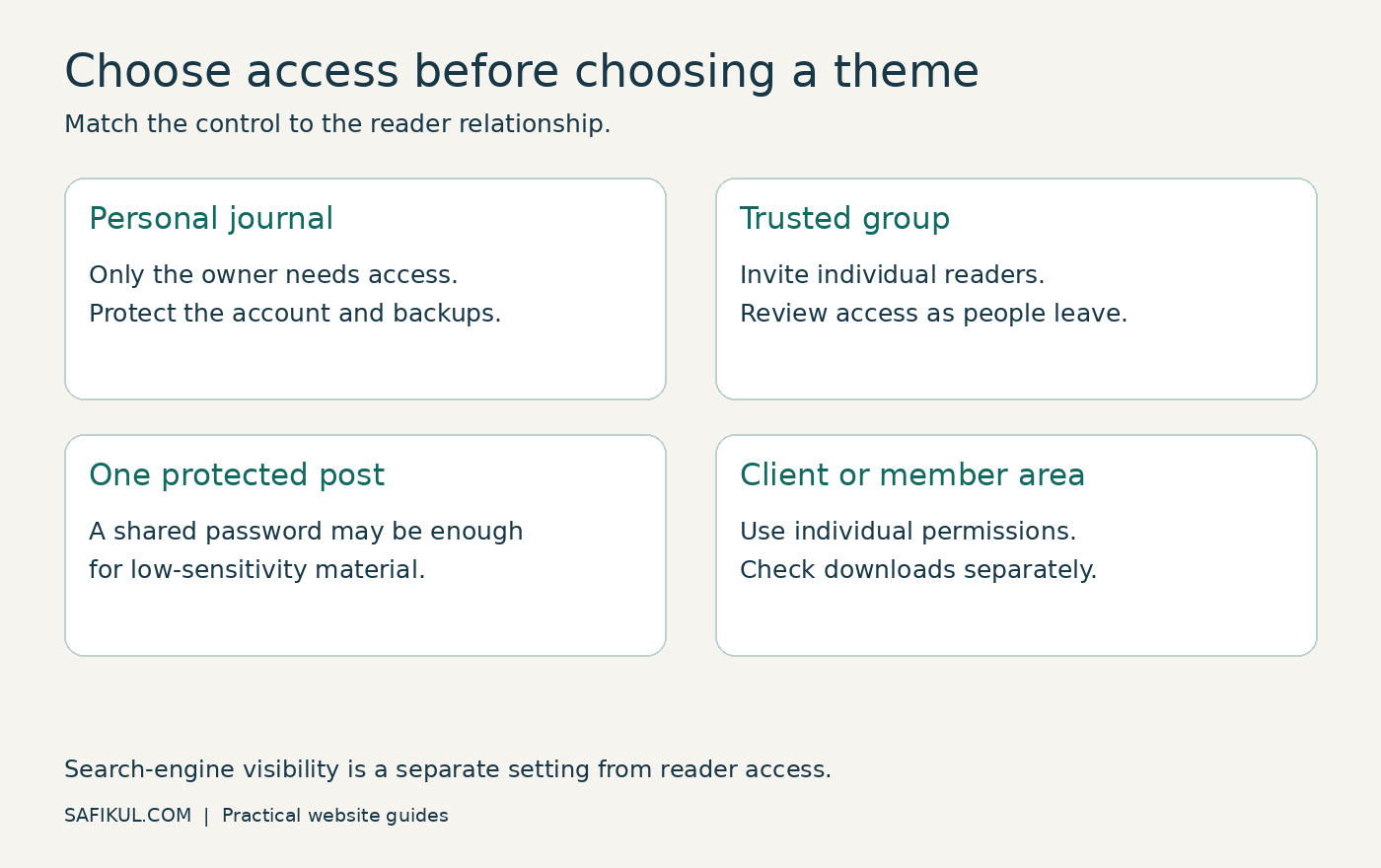
Choose the right kind of access
| Your situation | Starting approach | Important limitation |
|---|---|---|
| Only you need a journal | Private entries or a private site | Keep backups and protect the owner account |
| A small, trusted group | Invite-only accounts | Review and remove access when membership changes |
| One low-sensitivity update | Password-protected post | Anyone receiving the password may reuse it |
| Clients or paying readers | Individual accounts and content permissions | Test each role and file-download rule |
| A site still under construction | Protected staging environment | A coming-soon screen alone is not proof of confidentiality |
My recommendation is individual accounts whenever you need to remove one person’s access without disrupting everyone else. For example, a six-person client team should not need a new shared password every time one contractor leaves.
Do not give readers administrator or editor permissions just to let them read. Those roles can include publishing and management capabilities. Select a reader role supported by your chosen privacy system.
How to create a private blog on WordPress.com
WordPress.com is a hosted service with its own site-wide visibility controls. Its official private-site instructions currently place the setting under Settings → Reading → Site Visibility → Private. Save the change and invite the intended people as Viewers.
Approved readers sign in with WordPress.com accounts. This is different from sending everyone a post password. The documentation notes that the Private option may appear only after the site has been launched; prepare the visibility change before adding sensitive material.
I would set up a harmless sample post first. Invite one test reader, confirm they can open it, then check that an unapproved account cannot. Finish the access test before importing a personal archive.
Private mode can affect subscriptions and integrations. Check your actual newsletter setup rather than assuming changing site visibility controls every connected email service. A copied email can remain readable after someone loses website access.
How to make a self-hosted WordPress blog private
Self-hosted WordPress gives you control over hosting and plugins, but it does not share every WordPress.com menu. Start by deciding whether you are restricting individual entries or the whole website.
Option 1 — Restrict one post or page
Open the entry in the editor and find the status or visibility controls in the document settings. Choose Private or Password protected, then save. Labels can vary with the editor version. WordPress’s block-editor documentation explains these options.
Private content is available to accounts with the relevant permissions. It is not a general members-only feature that automatically grants access to every registered subscriber. Password protection instead asks the visitor for the entry’s password.
For a low-sensitivity planning note, a password may be sufficient. For client documents or a growing community, I would use individual account permissions and explicit file protection.
Option 2 — Restrict the whole site
Choose a site-access or membership solution compatible with your hosting and current WordPress version. Evaluate what it protects: posts, archives, feeds, REST responses, downloads and cached pages. A feature called “private site” does not establish that every one of those routes is covered.
- Back up the site and test the change on a staging copy.
- Define the allowed reader roles and disable open registration unless you need it.
- Apply the restriction to the intended content, including older entries.
- Keep login and password-reset routes usable.
- Configure cache exclusions or private-cache handling with your provider.
- Run the logged-out and revoked-user tests below.
If you only need selected sections hidden, my guide to the Content Control plugin explains content-level restrictions. Verify your file and site-wide requirements separately before treating any content plugin as a complete privacy solution.
Why noindex and robots.txt do not make a blog private
Search visibility and reader access solve different problems. A noindex instruction asks a supporting search engine not to index a resource it can crawl. A robots.txt rule controls crawling for compliant bots. Neither is a password check.
Someone with a working public URL may still open the content. For the technical distinction, see my robots.txt guide and Google’s guidance on controlling what you share.
If information was previously public, restricting it now cannot recall downloaded copies or screenshots. Review old search results, shared files and newsletters as a separate cleanup task.
Protect images and downloads separately
A locked article can still contain a publicly accessible image or PDF. WordPress.com’s post-visibility guidance explicitly warns that media attached to a password-protected entry can remain directly accessible and indexable.
Copy a file’s direct address and open it in a separate logged-out browser. Do not stop at checking the article URL. On self-hosted sites, ask whether your solution checks permission when the file itself is requested, including through a CDN.
I would avoid uploading sensitive originals until this works. A client report with an unpredictable filename is still exposed if anyone holding the address can download it. Removing a link from the page does not revoke the file.
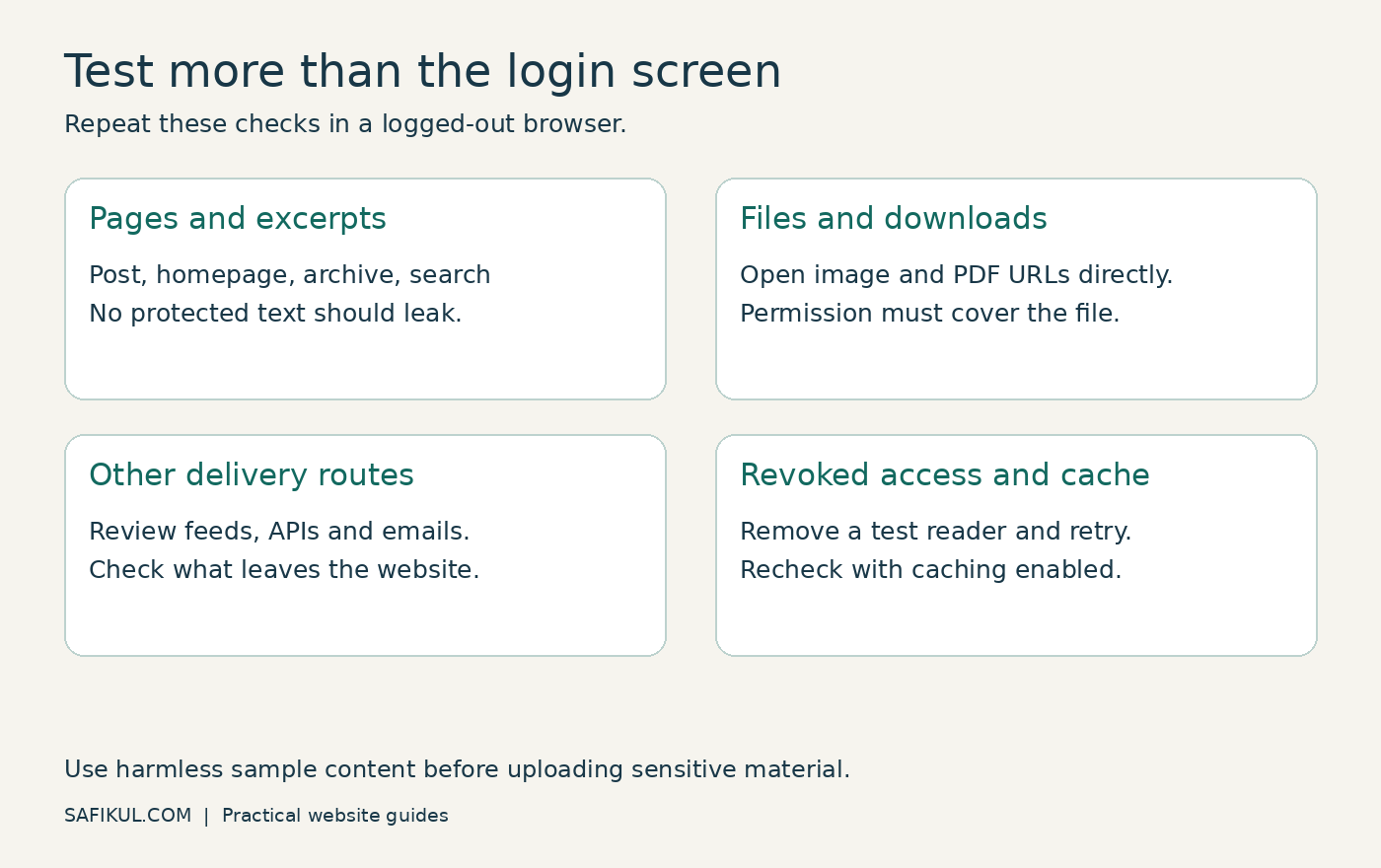
A practical privacy test before you invite readers
Use harmless test text that is easy to recognise. Keep three sessions: the owner, an approved reader, and a logged-out browser. An owner’s successful view tells you very little about what the public can see.
| Test | Expected result |
|---|---|
| Open a protected post while logged out | No protected text appears |
| Open the homepage, archives and search results | No restricted excerpts or revealing titles leak |
| Open direct image and PDF URLs | Files needing protection require permission |
| Check feeds, API responses and email previews | Restricted content is not distributed unintentionally |
| Remove a test reader and revisit | New requests no longer receive protected content |
| Repeat after caching is enabled | A public session never receives an authorised reader’s cached page |
For example, imagine a family journal containing a photograph and a paragraph about an upcoming trip. If the paragraph is protected but the photograph’s direct address is public, the setup has failed your photo requirement even though the page displays a password prompt. Fix the file rule and retest.
Also check what an email notification includes. A private website can be undermined by an automation that emails the full entry to an old subscriber list. Use a test recipient you control before enabling notifications.
How to maintain a private blog
Write down who owns the site, who can approve readers and where backups are stored. Use unique passwords and enable supported multifactor authentication for privileged accounts. Review access after a project ends, not just when something breaks.
Keep a regular backup outside the only live copy and test recovery using non-sensitive sample content. Protect exported archives too: an export can contain the very material your live site restricts.
Retest privacy after changing the theme, membership system, cache settings or CDN. Keep the test checklist short enough that someone will actually use it.
Frequently asked questions
Can I start private blogging for free?
Some platforms include privacy controls without a separate privacy add-on. Check the current plan’s access, storage and export limits. Self-hosted WordPress also needs hosting, even when the selected plugin is free. Choose based on your permission requirements before comparing price.
Can a private blog appear in Google?
Properly restricted content is not available for normal public crawling. Previously public URLs or references may remain visible for a while. Search exclusion is not a substitute for access control, and a search-result check alone cannot prove privacy.
Can readers share a private post?
They can share a link, but the recipient should still need permission. Authorised readers may also copy text or take screenshots. Private blogging limits access; it cannot prevent every redistribution by someone allowed to read.
Is password protection enough for a client blog?
It depends on the sensitivity and access needs. Individual accounts make access removal and role separation easier. Test files, sessions and integrations as well as posts before storing client material.
Should I optimise private posts for SEO?
Prioritise organisation and navigation for your approved readers. If you want public discovery, create a separate public introduction that explains the blog without exposing its protected content.
Start with one sample post and one reader
My practical starting point is simple: define the audience, publish harmless sample content, invite one reader and run the access tests. Once the controls work, move your real content in gradually. Private blogging succeeds when the intended people can read comfortably and everyone else remains outside.